TenantFabric
The complete guide to the TenantFabric Microsoft 365 management portal - managing identity, licensing, Exchange, Intune, security and compliance across every customer tenant from one place.
About TenantFabric
TenantFabric is a multi-tenant management portal for running Microsoft 365 estates on behalf of customers. It connects to each customer's Microsoft tenant through the Microsoft Graph API - using least-privilege application permissions or GDAP delegated access - and gives engineers a single, consistent interface for the work that would otherwise mean logging into dozens of separate Microsoft admin centres.
Everything you see is scoped to the customers you are allowed to access, and every change is written back to Microsoft through Graph and recorded in the audit log. Reporting and dashboards read from a cached snapshot that a background sync refreshes on a schedule, so pages load instantly and you always see when the data was last refreshed.
Identity
Users, groups, roles, administrative units, authentication methods, domains, directory sync.
Licensing
Per-SKU purchased / assigned / available, utilisation and cross-customer usage.
Exchange & collaboration
Mailboxes, shared mailboxes, distribution groups, Teams, SharePoint & OneDrive.
Intune
Devices, policies, apps, reporting, deployment health, Windows Autopilot and updates.
Security
Conditional Access, Secure Score, risky users, mail investigation, Purview compliance.
Automation & MSP tools
Scheduled automations, bulk jobs, configuration drift, tenant comparison, reports.
Getting started & the interface
Sign in at your TenantFabric URL with your email address and password. If multi-factor authentication is enabled for your account you will be prompted for your authenticator code; your organisation can also enable Microsoft Entra single sign-on so you sign in with your Microsoft work account (see Entra sign-in).
The shell
Every page shares the same frame:
- Left sidebar - the navigation, grouped into Customers, Identity, Licensing, Exchange, Collaboration, Intune, Security and Automation. What you see depends on your role and on whether a customer is selected.
- Customer switcher (top-left) - pick the customer you want to work in. Customer-scoped pages (Users, Devices, Mailboxes…) only appear once a customer is selected; MSP-wide pages (Dashboard, All Customers, Fleet Overview) are always available.
- Global search (top centre, ⌘K / Ctrl-K) - jump to a user, group or device across the selected customer.
- Context bar - under the header on a customer page, showing the tenant ID, primary domain and live Connection status (Healthy / Degraded / Not connected).
- Notifications (bell) and your account menu (initials, top-right).
Part 1 - User Guide
Part 1 covers the day-to-day work an engineer does inside a customer's tenant: identity and licensing, Exchange and collaboration, Intune, and security. Unless noted, each page is scoped to the customer selected in the switcher.
Dashboard
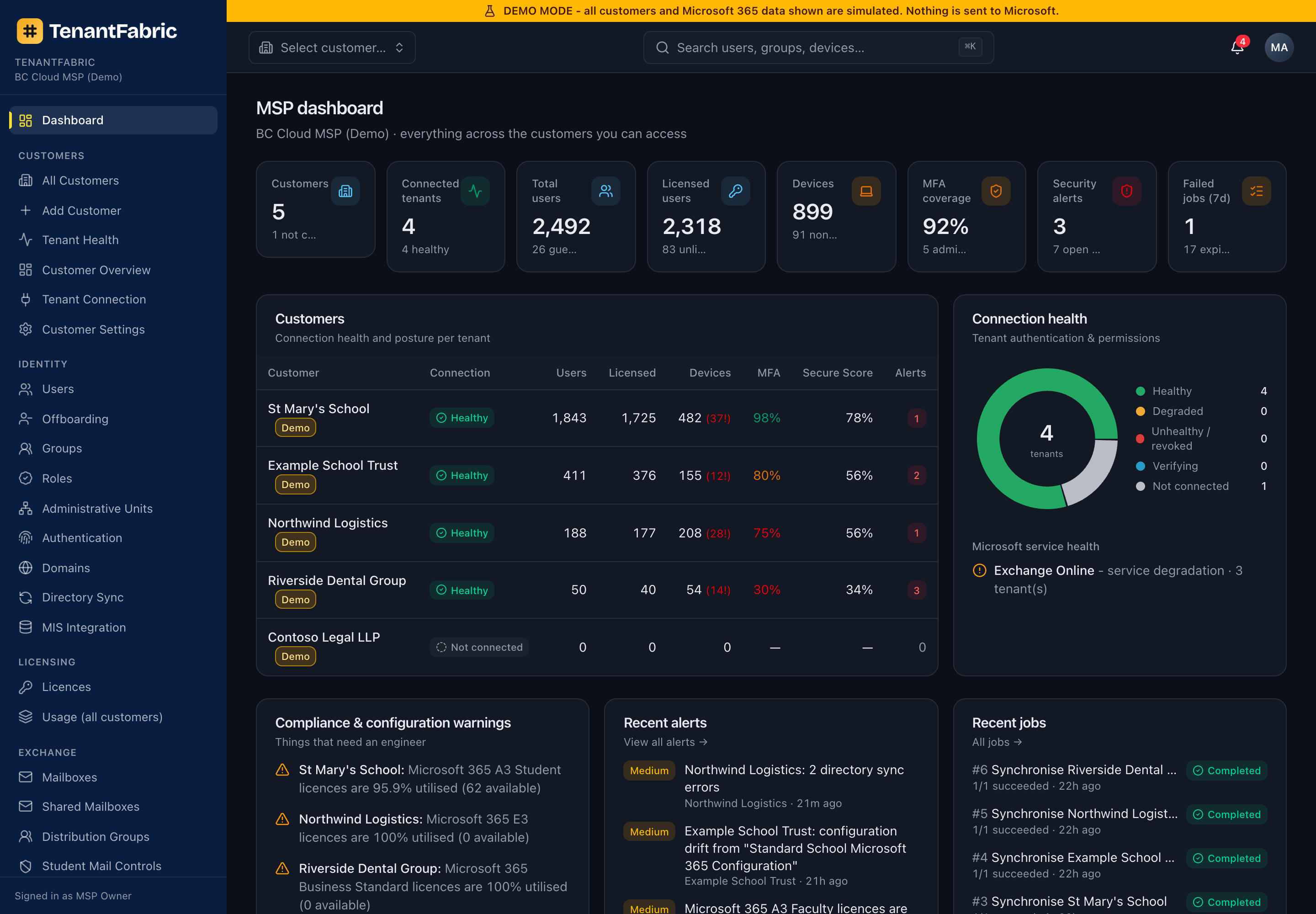
The dashboard is your morning overview across every customer you can access. The KPI strip totals customers, connected tenants, users, licensed users, devices, MFA coverage, open security alerts and failed jobs. Below it, the Customers table gives one row per tenant - connection status, user and licence counts, device count (with non-compliant in red), MFA %, Secure Score and open alerts - so you can see at a glance which tenant needs attention.
The right-hand Connection health donut breaks tenants down by Healthy / Degraded / Unhealthy / Not connected, and surfaces Microsoft service-health incidents. The lower panels list compliance & configuration warnings ("things that need an engineer"), recent alerts, recent jobs and recent activity.
- Click any customer row to open that customer's overview.
- Red counts (e.g.
482 (37!)devices) flag non-compliant or at-risk items - click through to the relevant page. - "View all alerts", "All jobs" and "Audit log" links jump to the full lists.
Customer overview
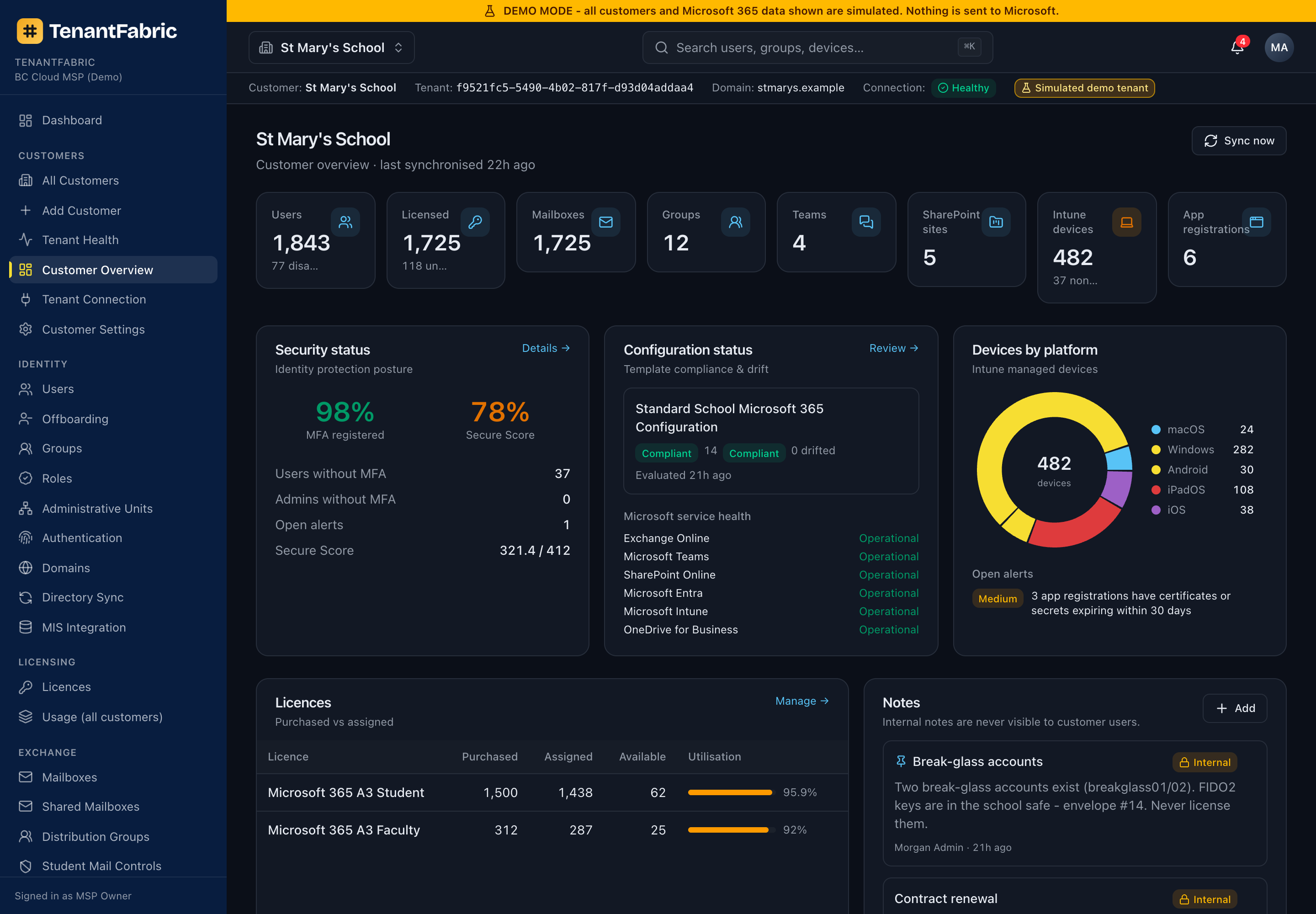
Selecting a customer and clicking Customer Overview (or a row on the dashboard) opens the per-tenant home page. It summarises the tenant in tiles - total users (with disabled/guest breakdown), licensed users, mailboxes, groups, Teams, SharePoint sites, Intune devices (with non-compliant count) and app registrations - then shows Security status, Configuration status, Devices by platform, a Licences table (purchased / assigned / available / utilisation), internal Notes and Recent activity.
Use Sync now (top-right, MSP) to queue an immediate refresh of this tenant's cached data.
Users
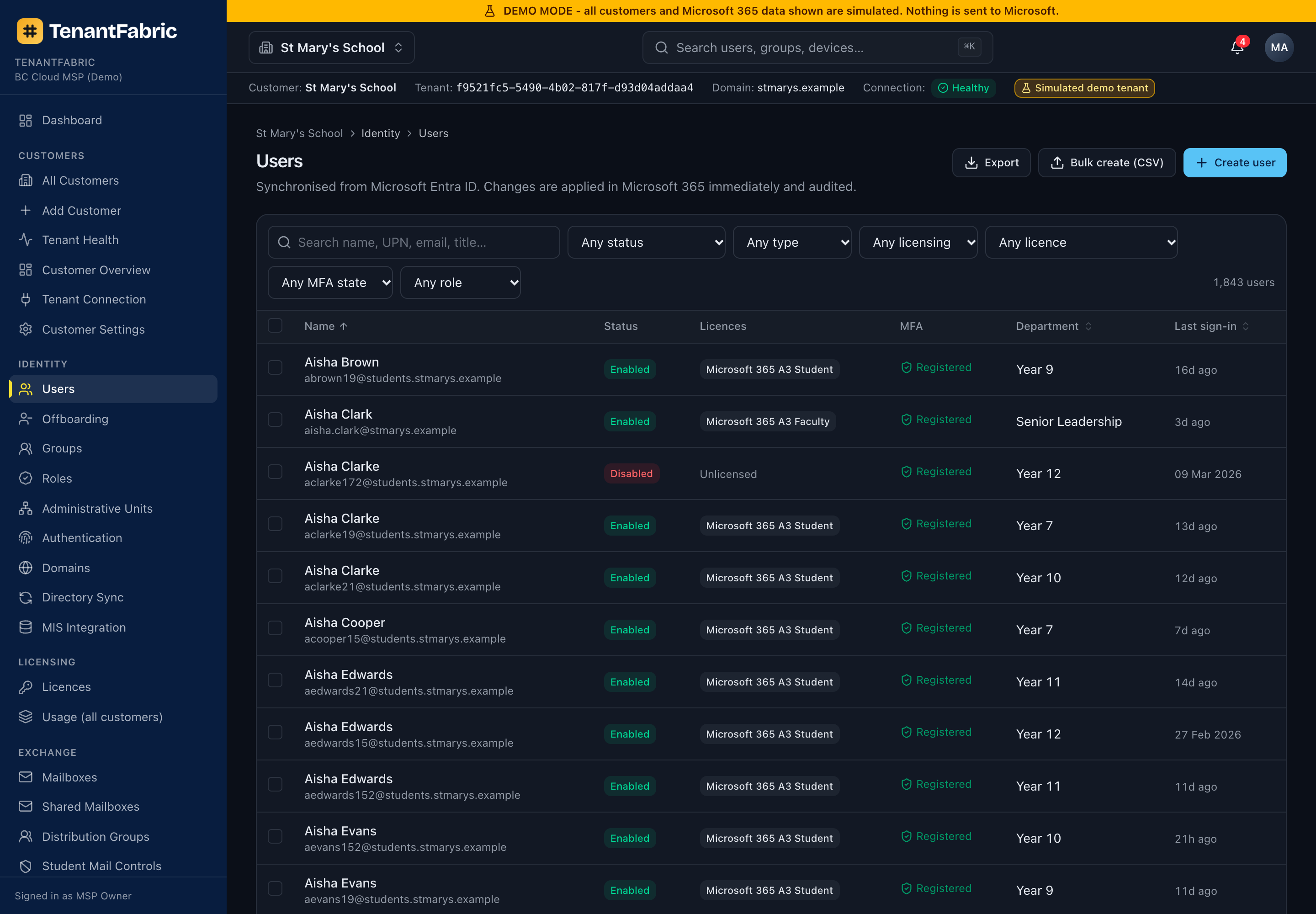
The Users page lists every account in the tenant with status, assigned licences, MFA state, department and last sign-in. Search and the column filters narrow the list; Export downloads it.
Creating & bulk-creating users
- Create user - opens a form for display name, UPN, password options and initial licences/groups.
- Bulk create (CSV) - upload a CSV to provision many accounts at once; the result runs as a background job.
The user detail page
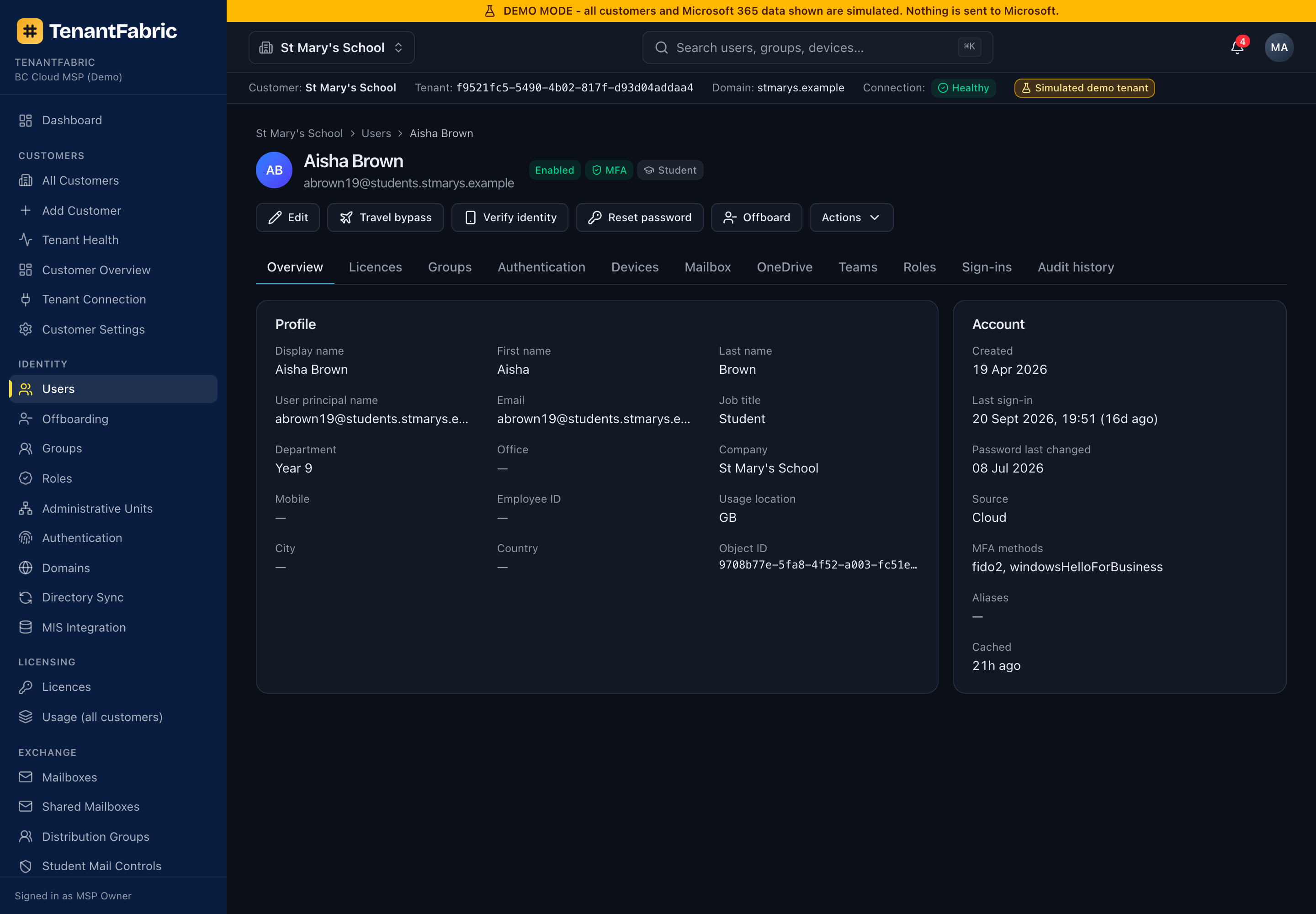
Click any user to open their record. Tabs across the top cover Overview (profile & account), Licences, Groups, Authentication, Devices, Mailbox, OneDrive, Teams, Roles, Sign-ins and Audit history. The action buttons give you the common lifecycle tasks:
| Action | What it does |
|---|---|
| Edit | Change profile fields (name, job title, department, usage location, etc.). |
| Reset password | Set a new password; optionally require change at next sign-in. Can be delivered securely via Password Pusher. |
| Verify identity | Issue a Temporary Access Pass (TAP) and run through identity-verification for a help-desk caller. |
| Travel bypass | Temporarily exempt the user from the UK geolock Conditional Access policy for legitimate travel. |
| Offboard | Start the leaver workflow - disable, revoke sessions, reset password, convert mailbox, remove licences (see Offboarding). |
| Actions ▾ | Further tasks: enable/disable, revoke sessions, reset MFA, delete, manage group membership. |
Offboarding
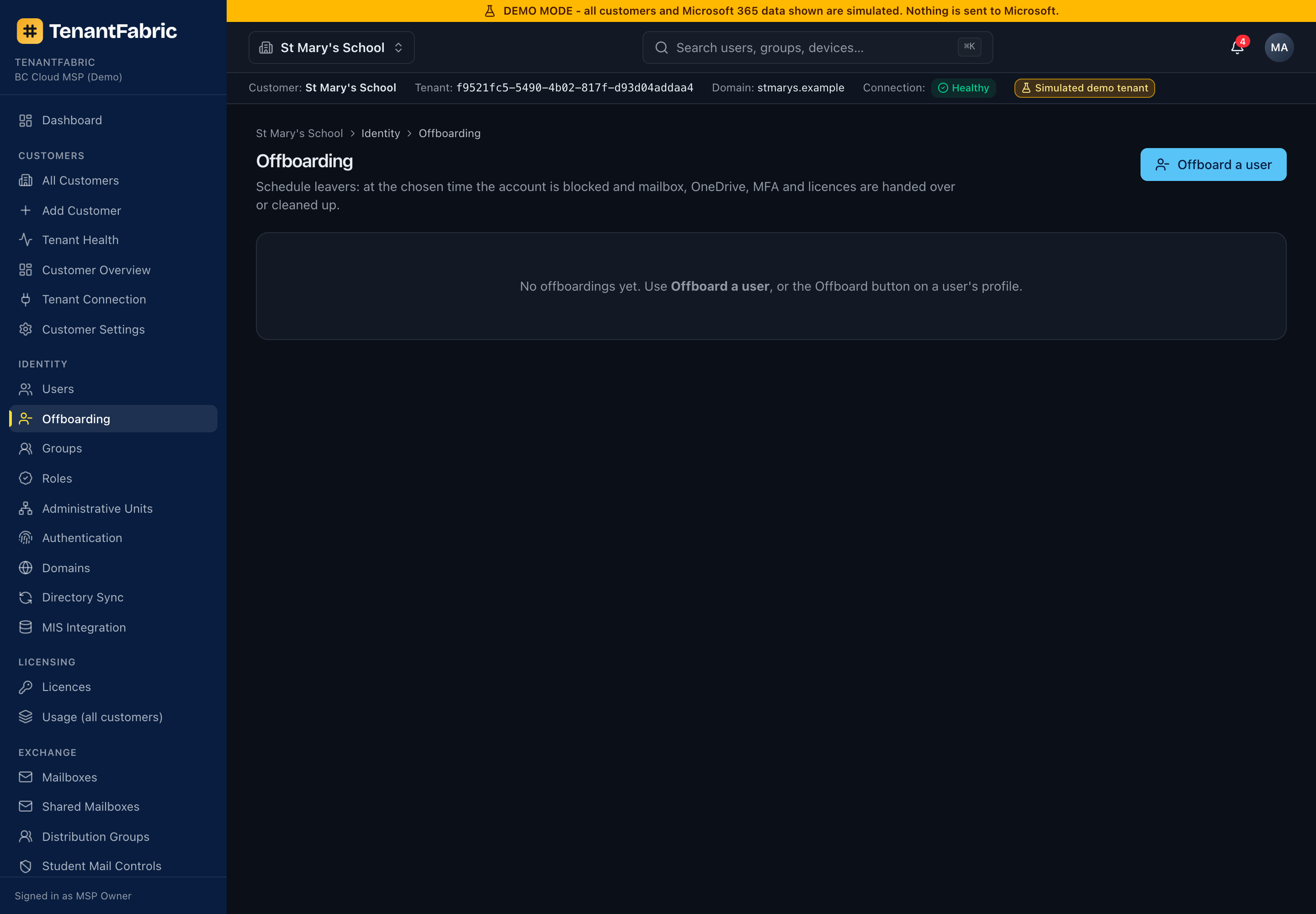
Offboarding packages the standard leaver steps into one reviewed workflow. Click Offboard a user, pick the account, then choose which steps to run: disable the account, revoke all active sessions, reset the password, remove licences, convert the mailbox to shared, delegate mailbox/OneDrive access to a manager, and remove group memberships. The job runs in the background and is fully audited.
Groups
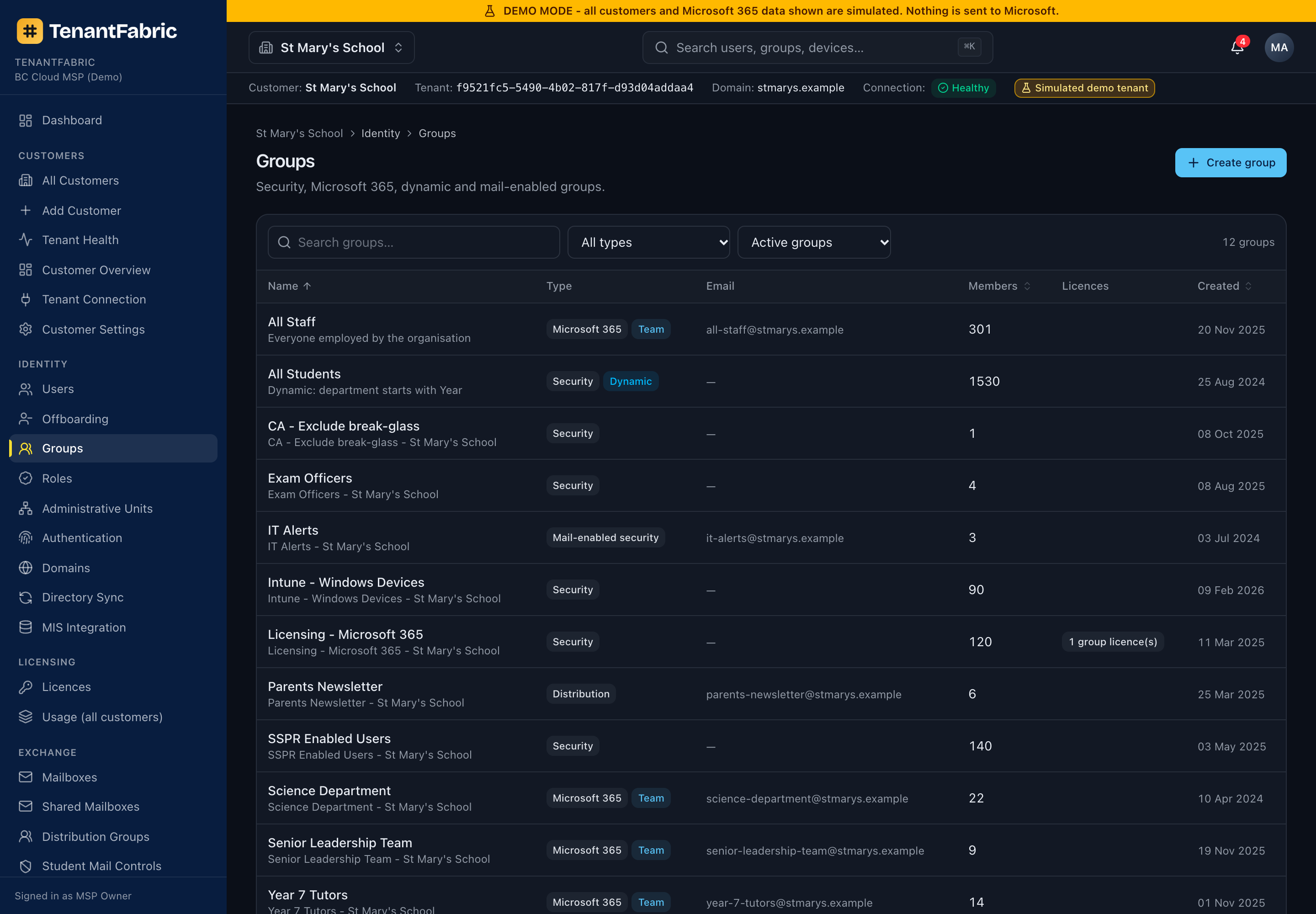
Lists security, Microsoft 365 and distribution groups with type, email, member count, assigned licences and creation date. Create group makes a new security or M365 group. Open a group to manage its membership, owners, group-based licensing and settings.
Directory roles
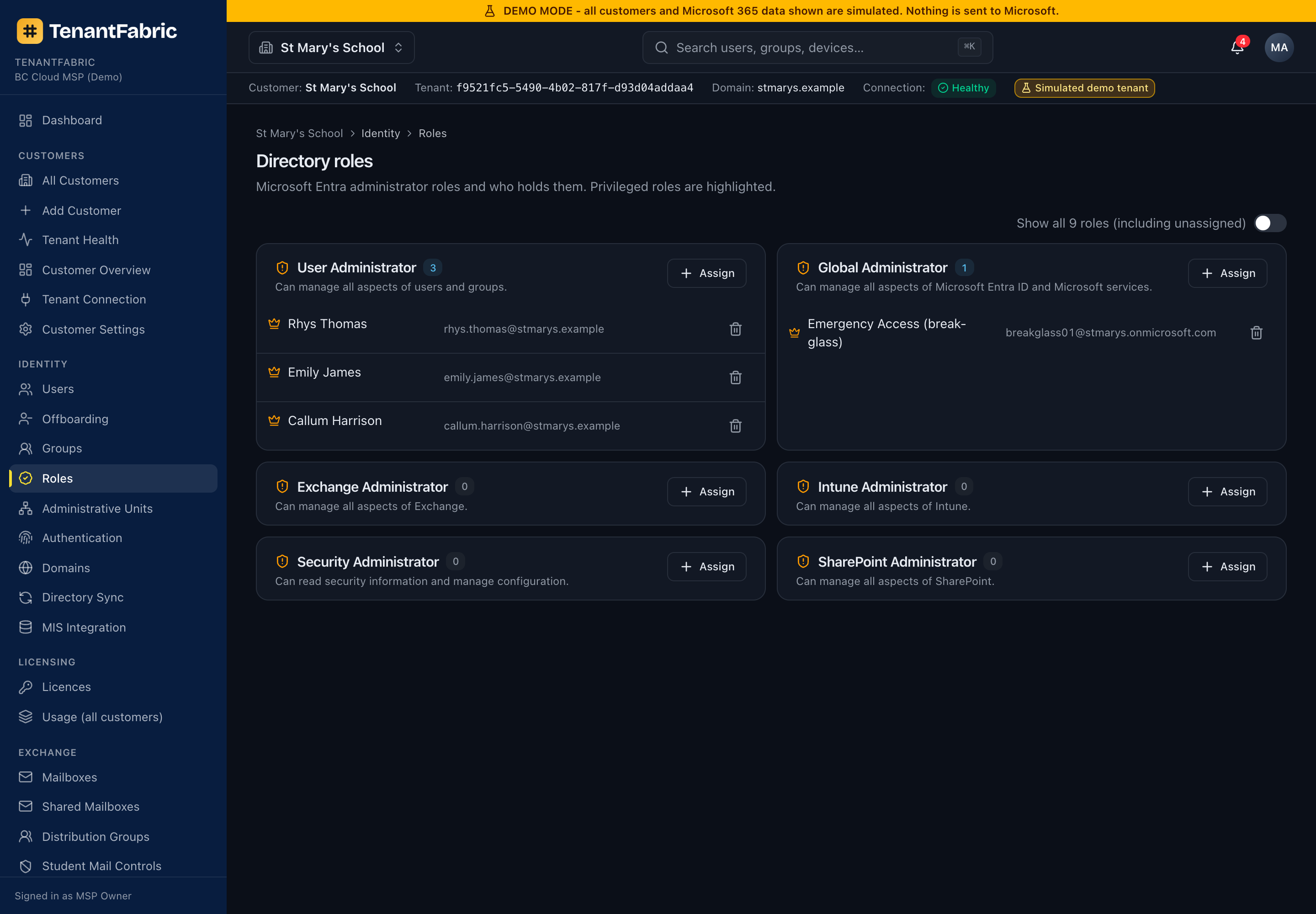
Shows Microsoft Entra directory-role assignments in the customer tenant - Global Administrator, User Administrator, Exchange/Intune/Security/SharePoint Administrator and more - with the members in each. Use Assign to add a user to a role. Watch the Global Administrator count: too many is a security finding, and break-glass emergency-access accounts should be the only unlicensed admins.
Administrative units
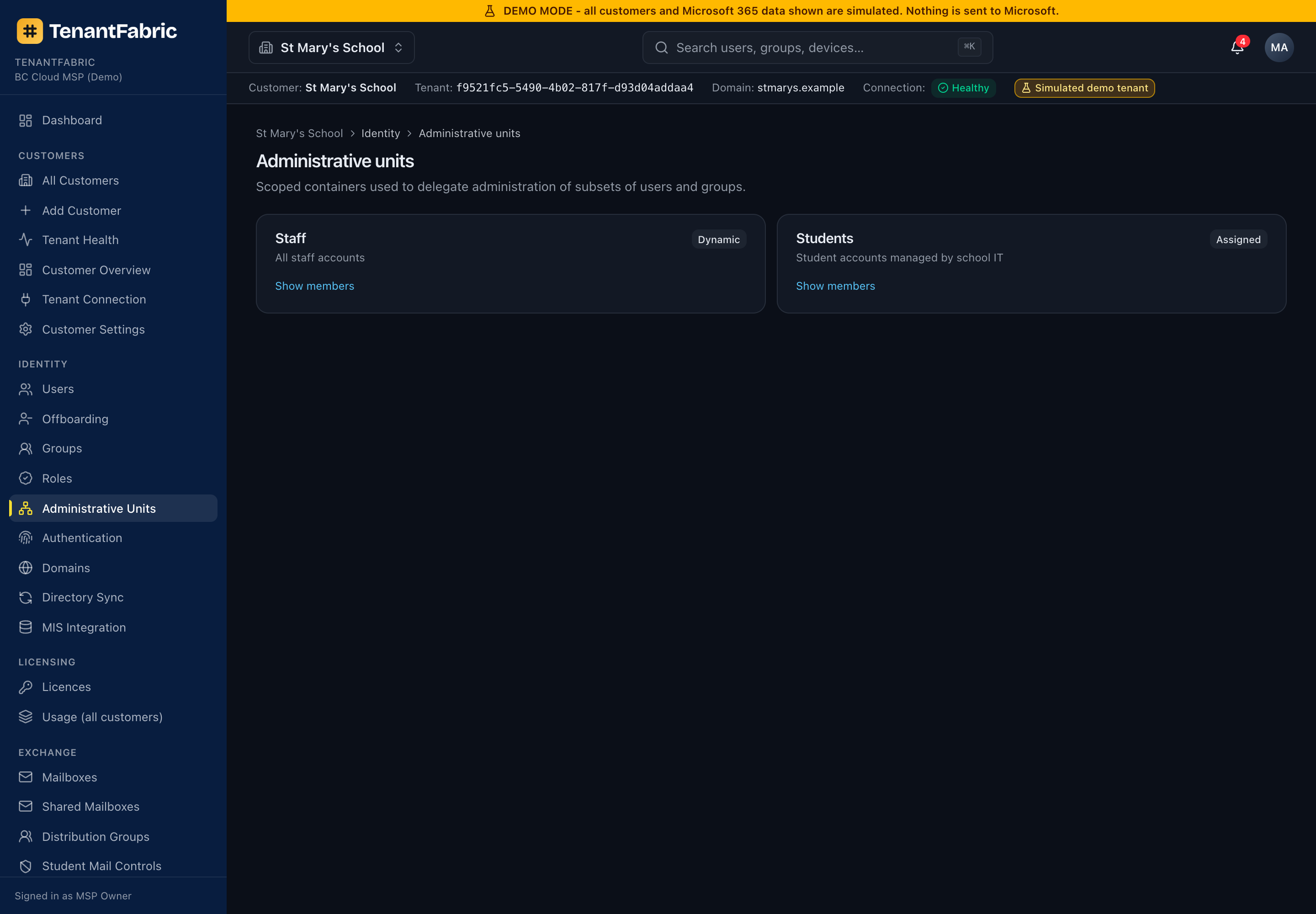
Administrative units (AUs) scope admin permissions to a subset of the directory - for example separating Staff from Students in a school. This page lists the tenant's AUs; Show members expands the users and groups each one contains.
Authentication
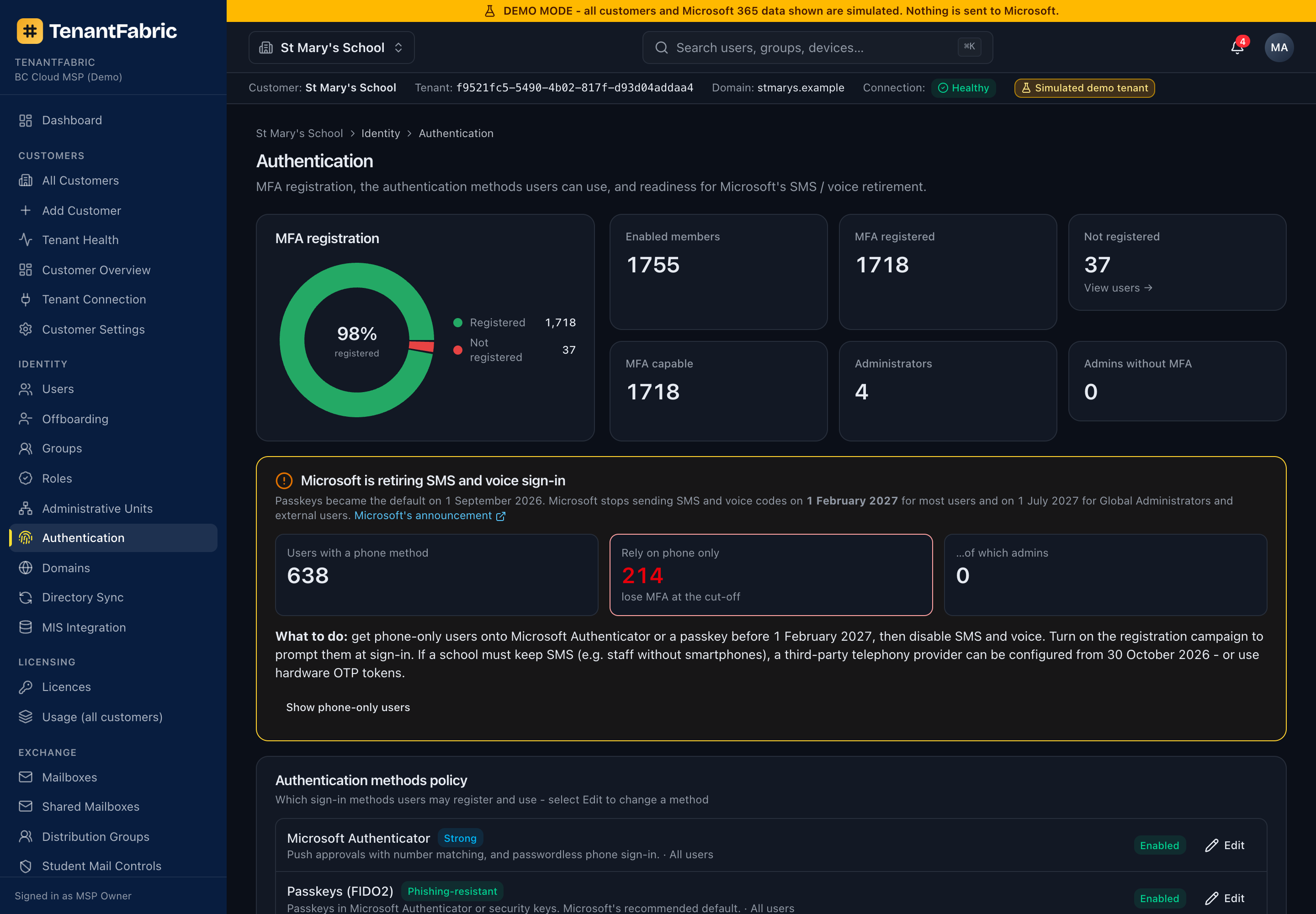
A tenant-wide view of authentication posture. MFA registration shows how many users are not registered (with a click-through to the list) and how many admins lack MFA. The Authentication methods policy section shows which methods are enabled, and flags phone-only users ahead of Microsoft's retirement of SMS/voice sign-in. Use Edit to adjust the methods policy.
Domains & email authentication
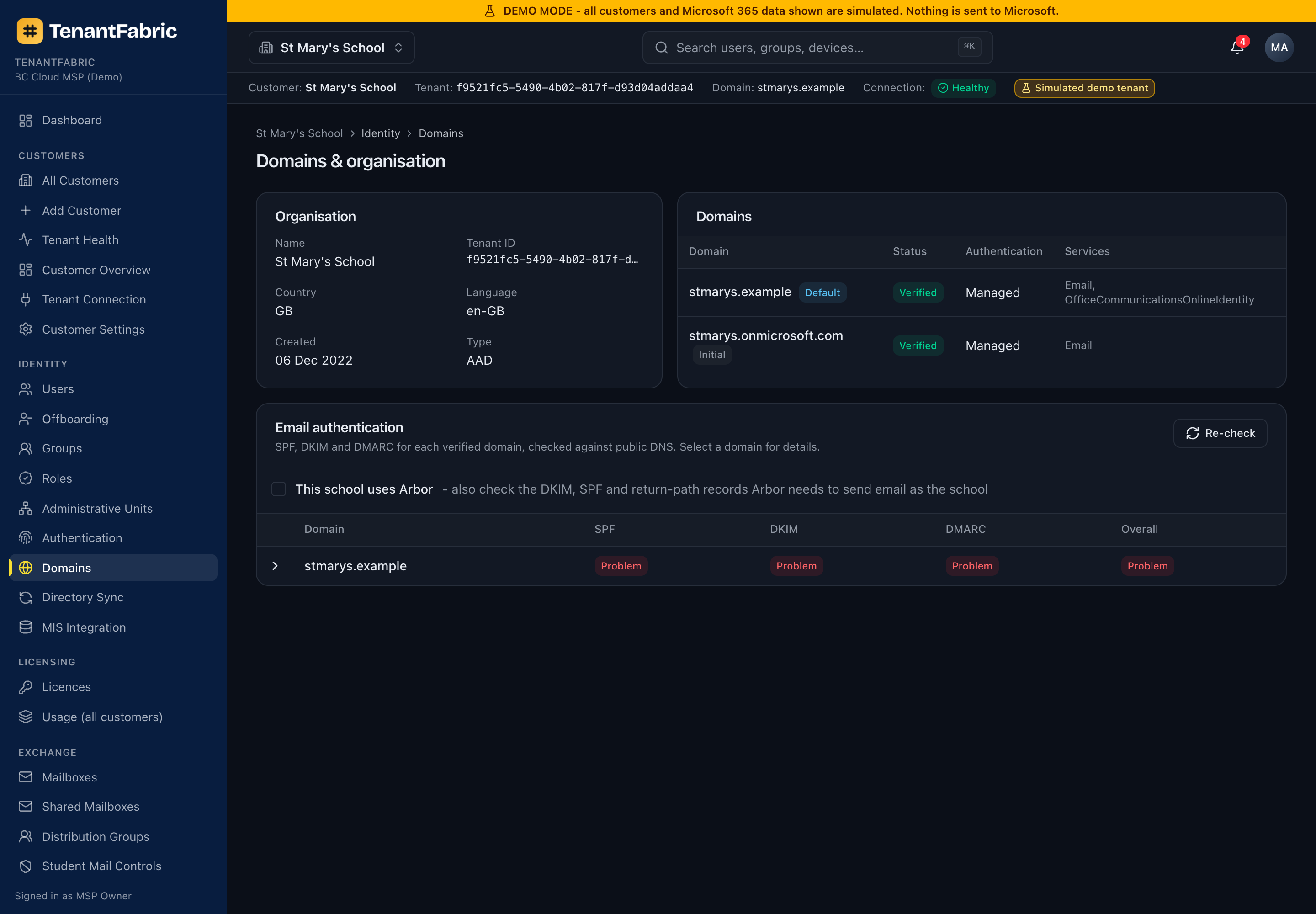
Lists the tenant's verified domains with their status and services, and - importantly - the email authentication health of each: SPF, DKIM and DMARC, with an overall verdict. This is the quickest way to spot a domain that can be spoofed. Re-check re-runs the DNS lookups.
Directory sync
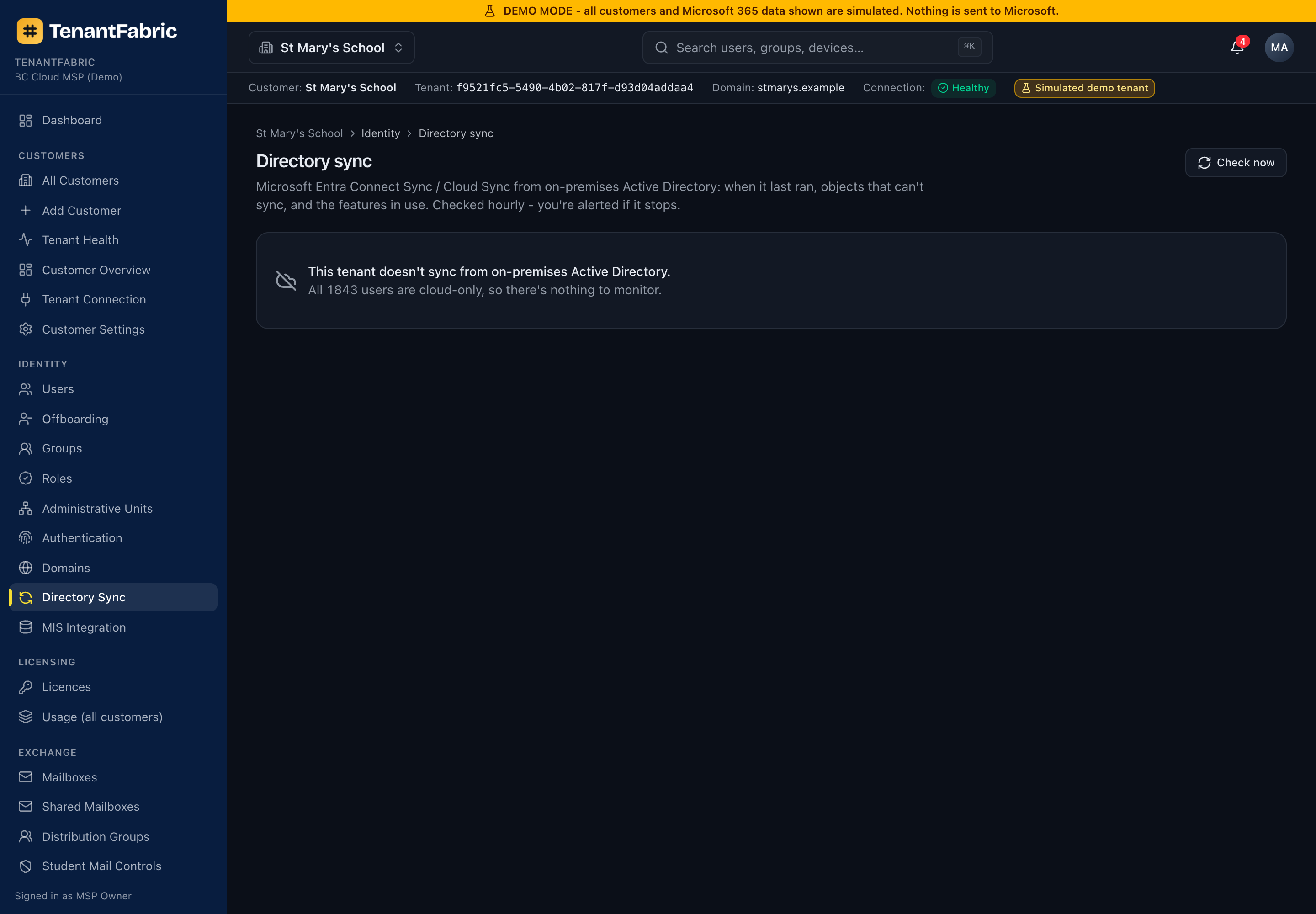
Shows the health of on-premises directory synchronisation (Entra Connect / Cloud Sync): whether sync is enabled, the last sync time, and any sync errors or accounts that have drifted. Check now refreshes the status. For cloud-only tenants this simply confirms no on-prem sync is configured.
Licences
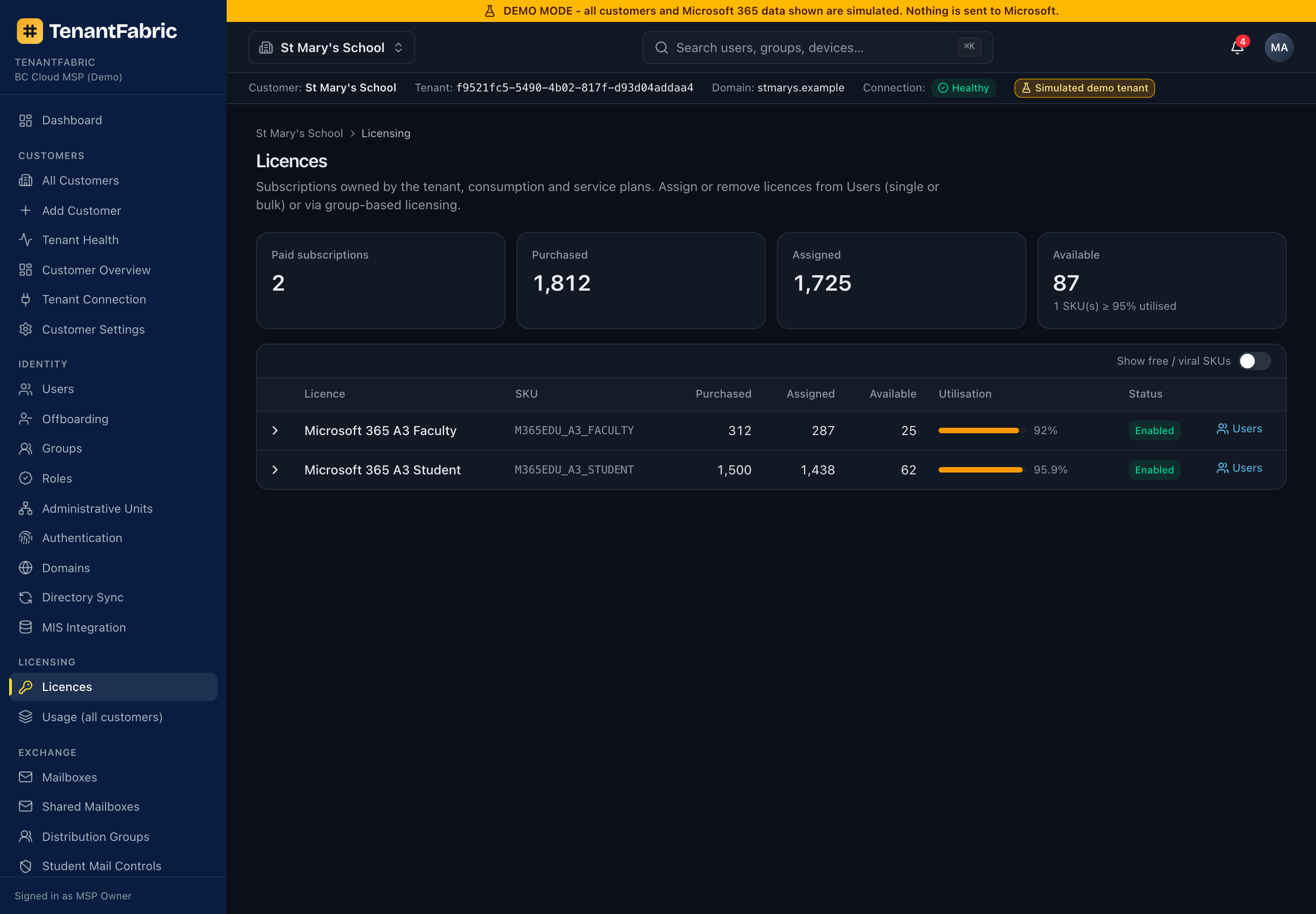
Every subscribed SKU in the tenant with purchased, assigned and available seats, a utilisation bar and status. It's the fast answer to "do we have a spare licence?" and "what are we over-/under-buying?". Over-utilised SKUs (no seats left) and nearly-exhausted SKUs are highlighted. For the cross-customer view, MSP users have Usage (all customers).
Exchange Online - mailboxes
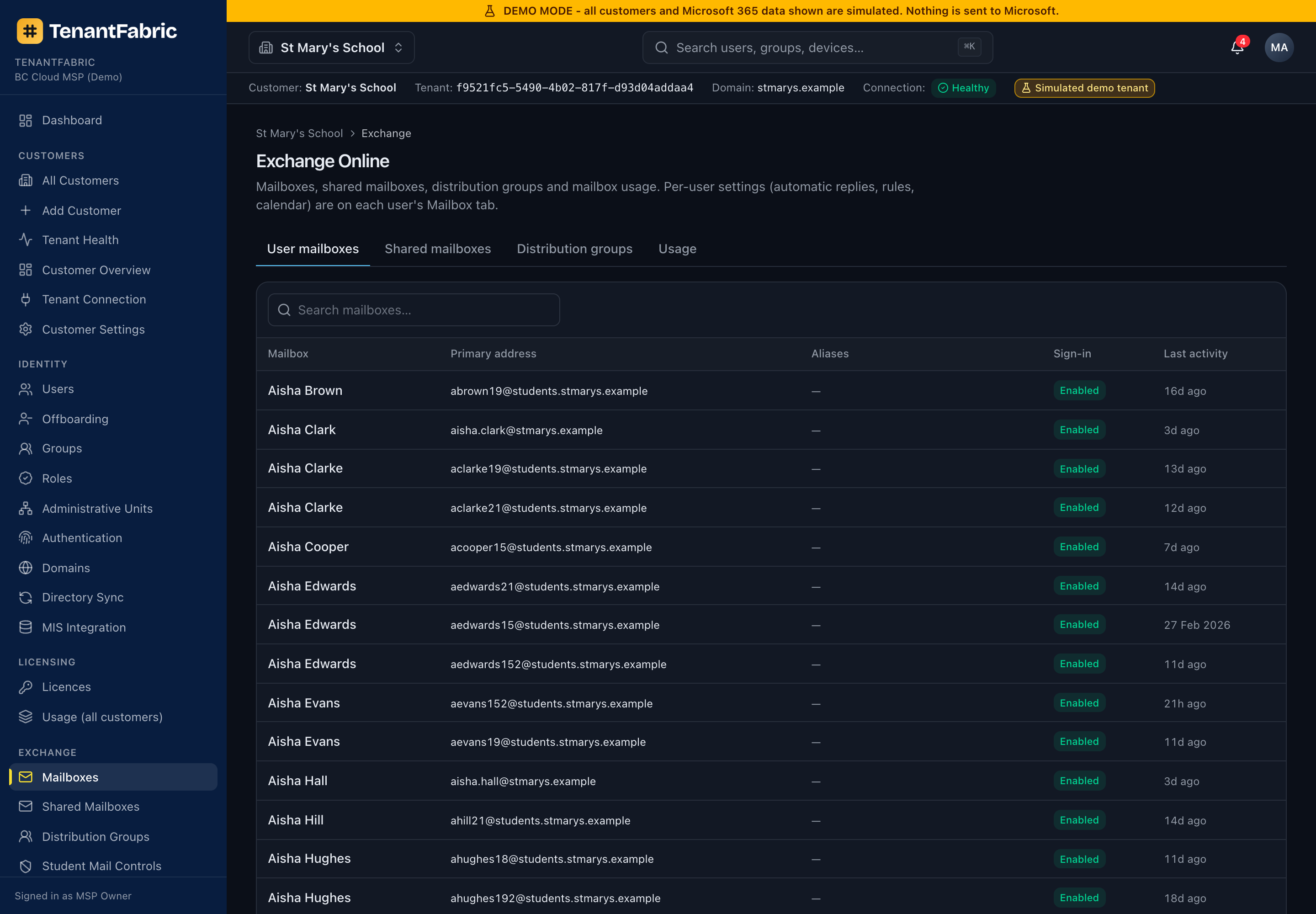
The Exchange Online hub, with tabs for User mailboxes, Shared mailboxes, Distribution groups and Usage. Each mailbox shows its primary address, aliases, sign-in enablement and last activity. From here you manage shared-mailbox delegation, distribution-group membership, and mailbox settings such as automatic replies and forwarding.
Microsoft Teams
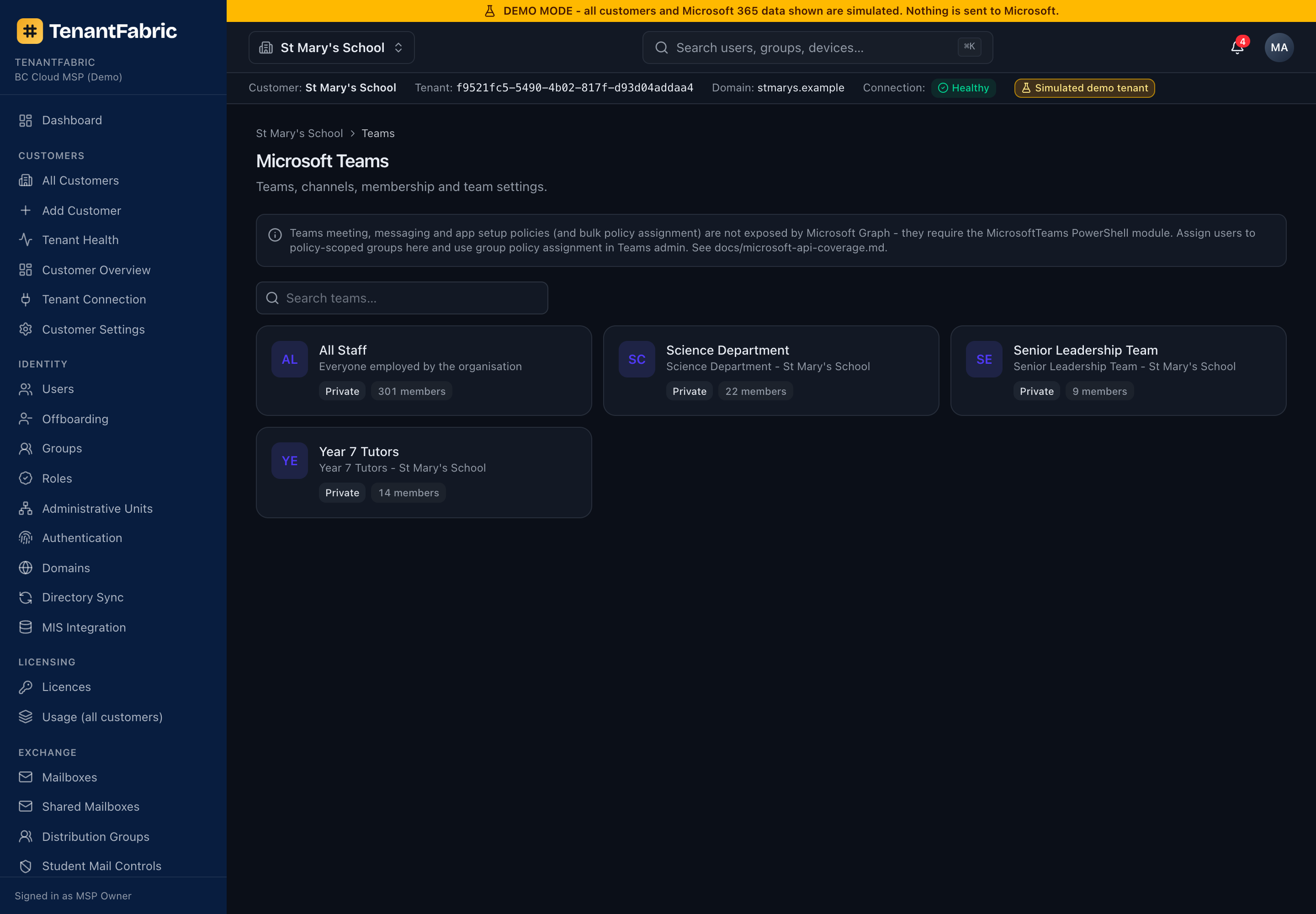
Lists the tenant's Teams with membership and settings, and lets you drill into a team to see its channels, owners and members. Use it to audit sprawl, find ownerless teams and review guest access.
SharePoint & OneDrive
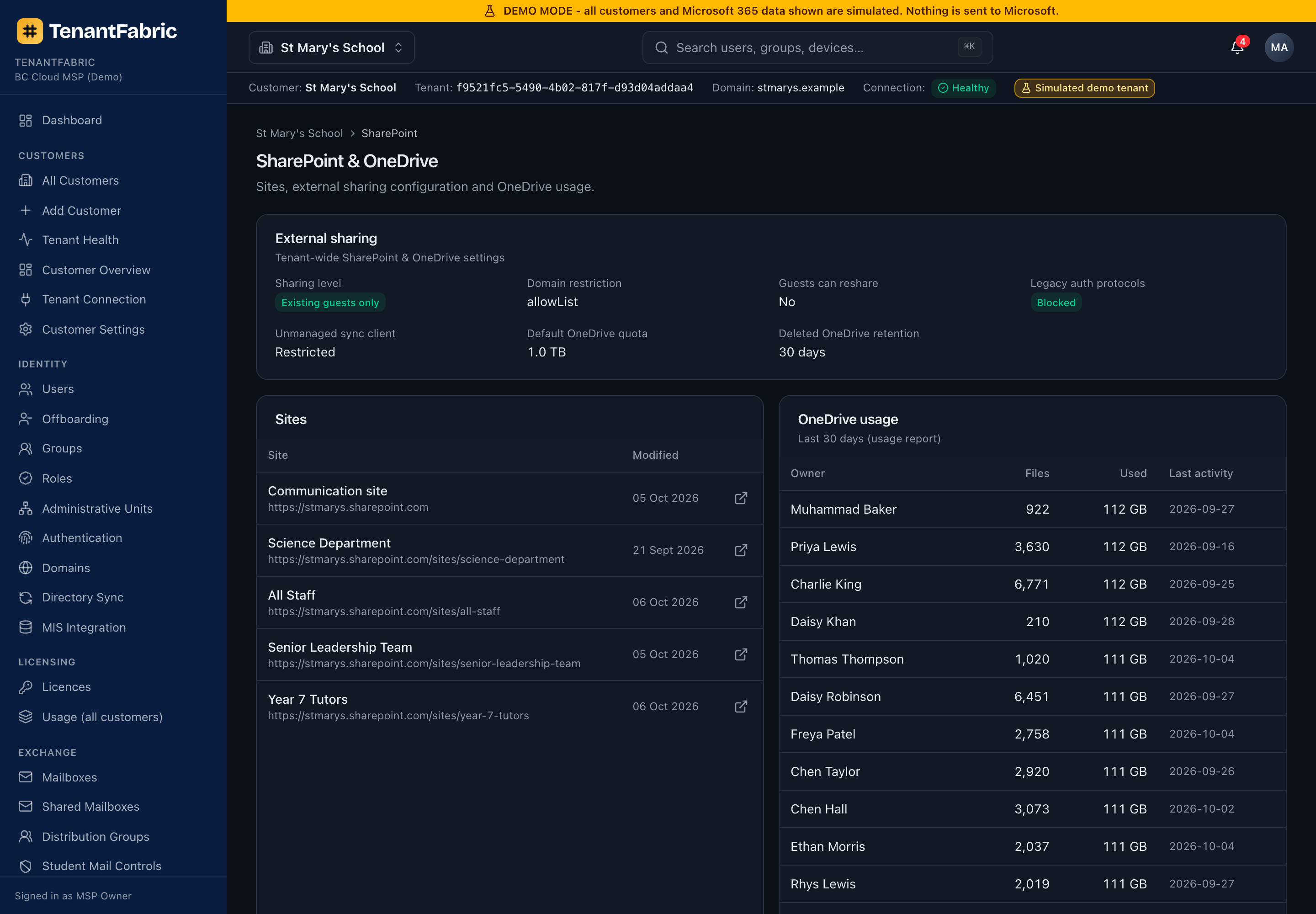
Shows the tenant's external sharing posture, the Sites list (owner, file count, storage used, last activity) and OneDrive usage. Use it to review sharing settings, find large or dormant sites, and keep an eye on storage.
Intune - devices
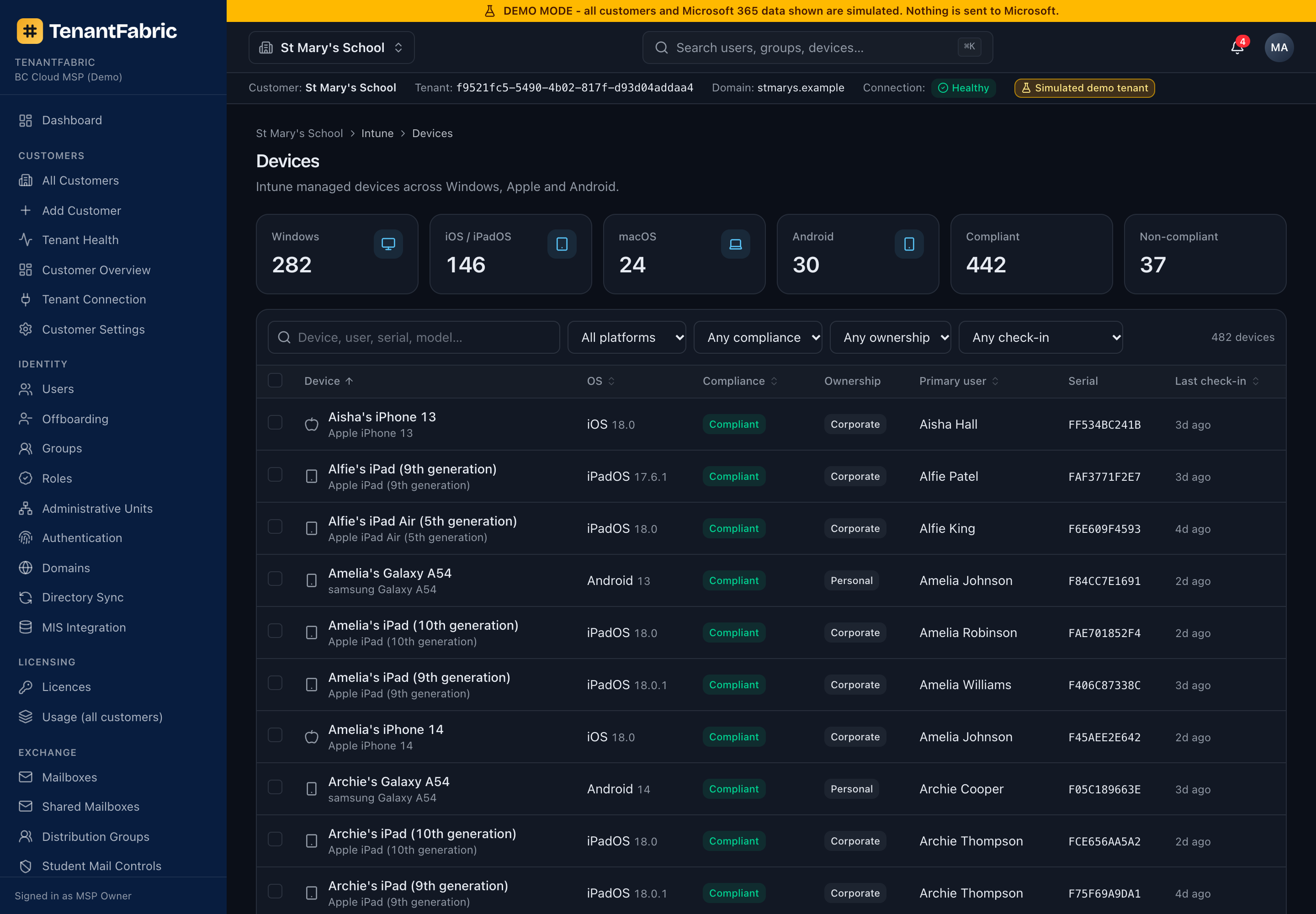
The managed-device inventory: device name, OS, compliance state, ownership, primary user, serial and last check-in. Filters (including the Compliance sidebar shortcut that pre-filters to non-compliant) narrow the list. Open a device for its full record and remote actions - sync, restart, remote lock, rename, retire and wipe - each gated by the appropriate permission (intune.write / intune.wipe) and confirmed before it runs.
Intune - policies & applications
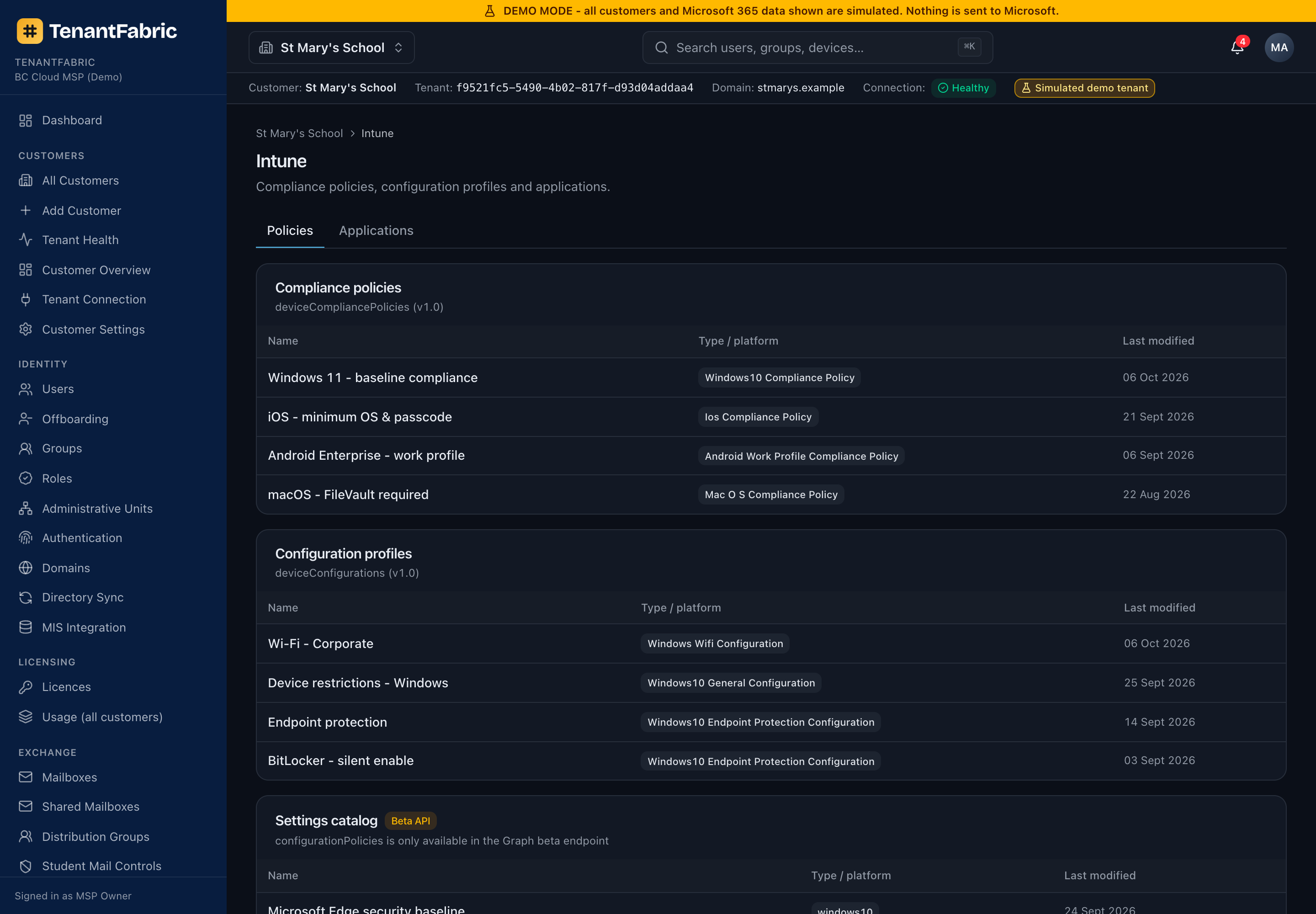
The Policies tab lists compliance policies, configuration profiles and settings-catalog policies with their type, platform and last-modified date. The Applications tab lists the apps deployed through Intune. This is the configuration catalogue; for how those policies and apps are actually landing on devices, use Deployment health and the reporting pages below.
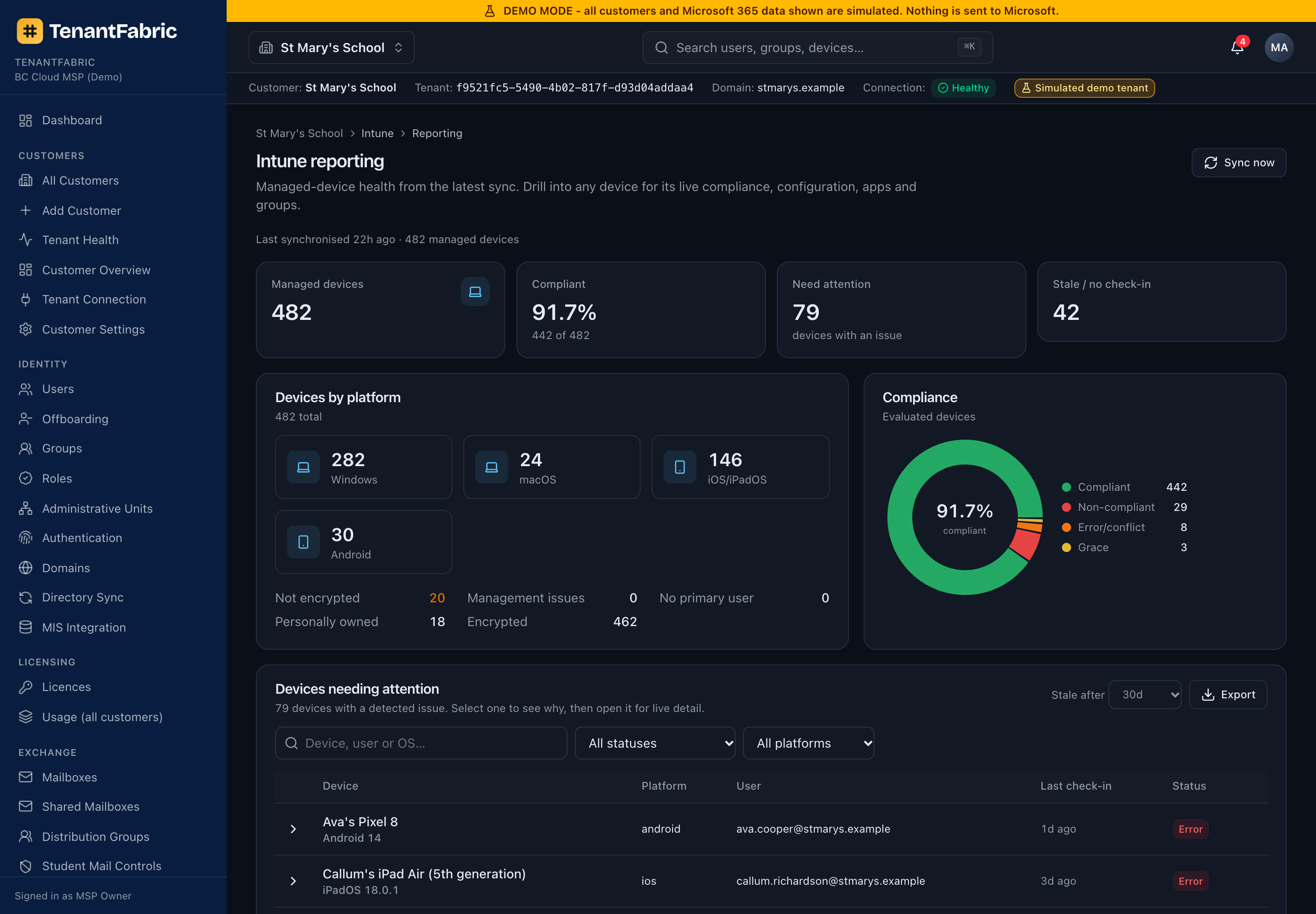
Intune - reporting & device configuration issues
The operational answer to "which devices need an engineer?". KPI tiles cover total devices, per-platform counts, compliance %, "need attention", stale / no check-in, encryption and management issues. The Compliance donut breaks devices into compliant / non-compliant / error / grace / unknown. The Devices needing attention table lists every device with a detected issue, worst-first, filterable by status, platform and free text, with an adjustable stale threshold (7–90 days). Select a device to see why each issue was raised and the Graph field behind it, then open the device for live detail.
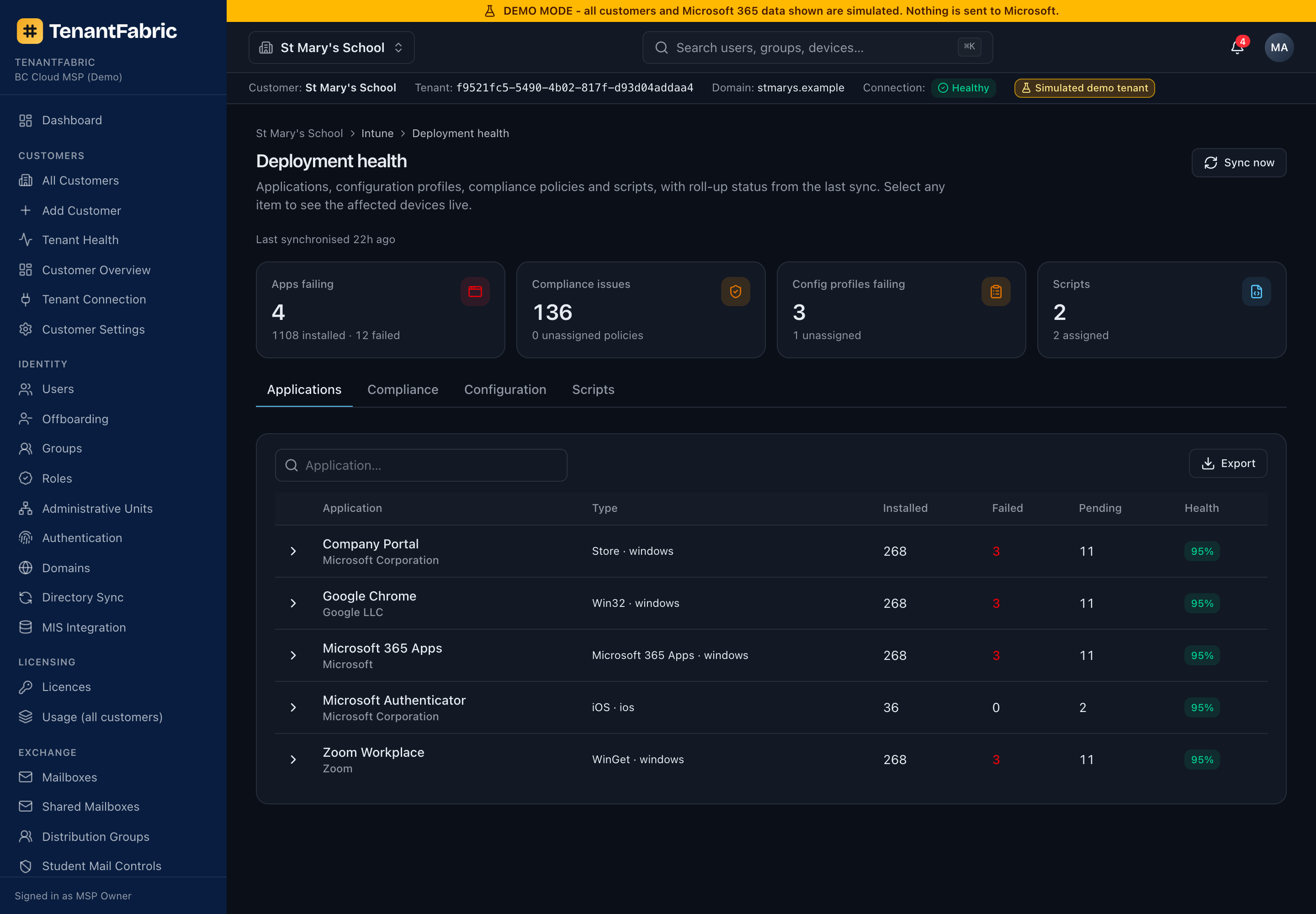
Intune - deployment health
Roll-up status for what's actually deploying, with a live per-device drill-down. Tabs:
- Applications - assigned apps with installed / failed / pending counts and an install-health %.
- Compliance - compliance policies with compliant / non-compliant / error counts; unassigned policies flagged.
- Configuration - configuration profiles with success / error / conflict counts.
- Scripts - device-management scripts; run states loaded live per script.
Select any row to load the affected devices live. The KPI strip at the top surfaces failing apps, compliance issues, config failures and script counts.
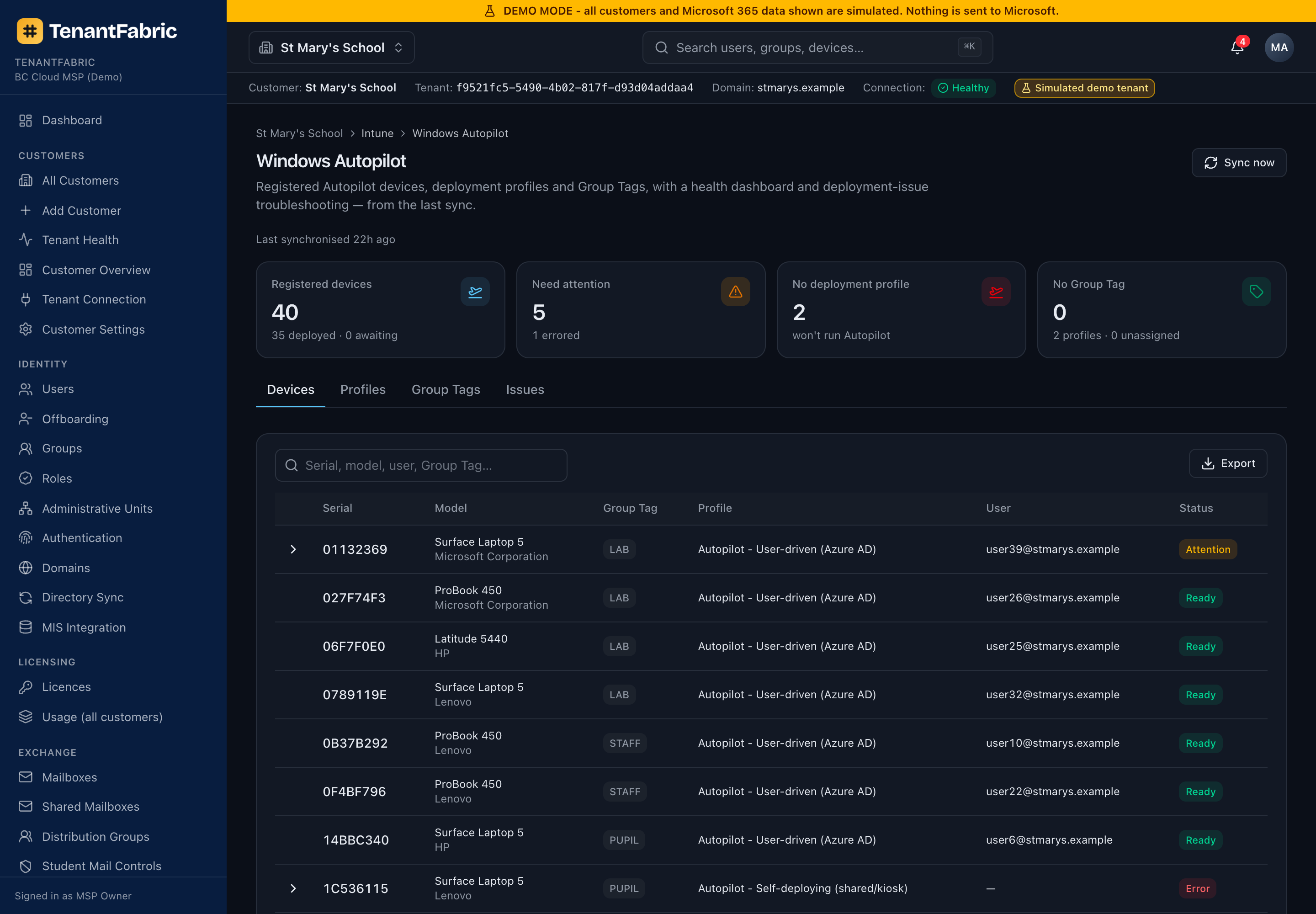
Intune - Windows Autopilot
A health dashboard and troubleshooting view for Autopilot-registered devices. KPIs cover registered devices (deployed / awaiting), devices needing attention, devices with no deployment profile and devices with no Group Tag. Tabs:
- Devices - serial, model, Group Tag, assigned profile, user and a computed health status (Ready / Awaiting deployment / Attention / Error). Expand a flagged device to see exactly why.
- Profiles - deployment profiles with mode, join type, assignment and per-profile device counts.
- Group Tags - devices grouped by Group Tag, with the profiles each maps to.
- Issues - the Devices view filtered to only devices with a problem.
Intune - updates & OS versions
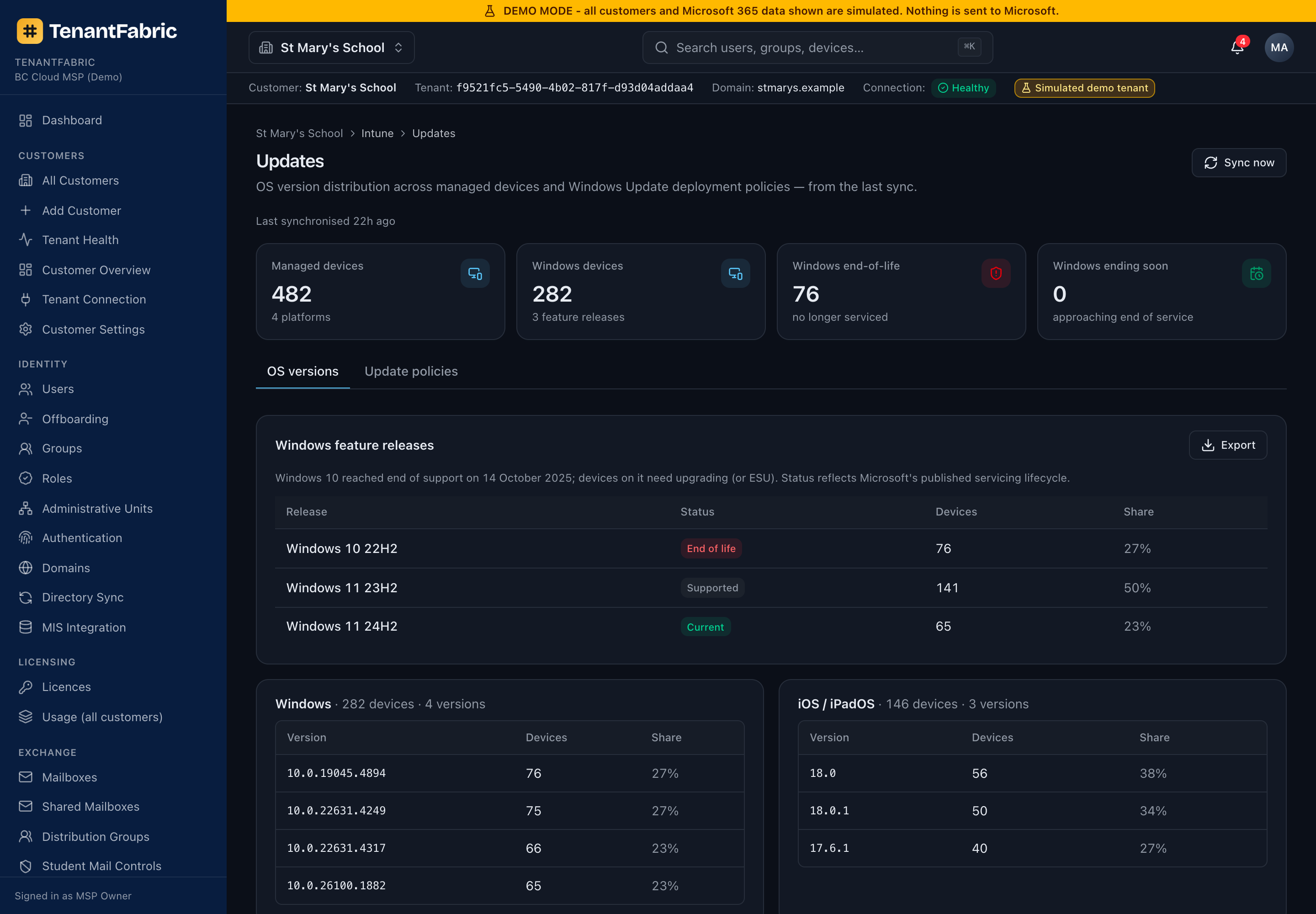
Two views. OS versions shows the OS/version spread across all managed devices, with a Windows feature-release roll-up (e.g. Windows 11 24H2 / 23H2, Windows 10 22H2) and a servicing status - Current / Supported / Ending soon / End of life. Windows 10 is flagged end-of-life (support ended 14 October 2025). Update policies lists Windows Update rings and feature / quality / driver update profiles with assignment status and key settings.
Conditional Access
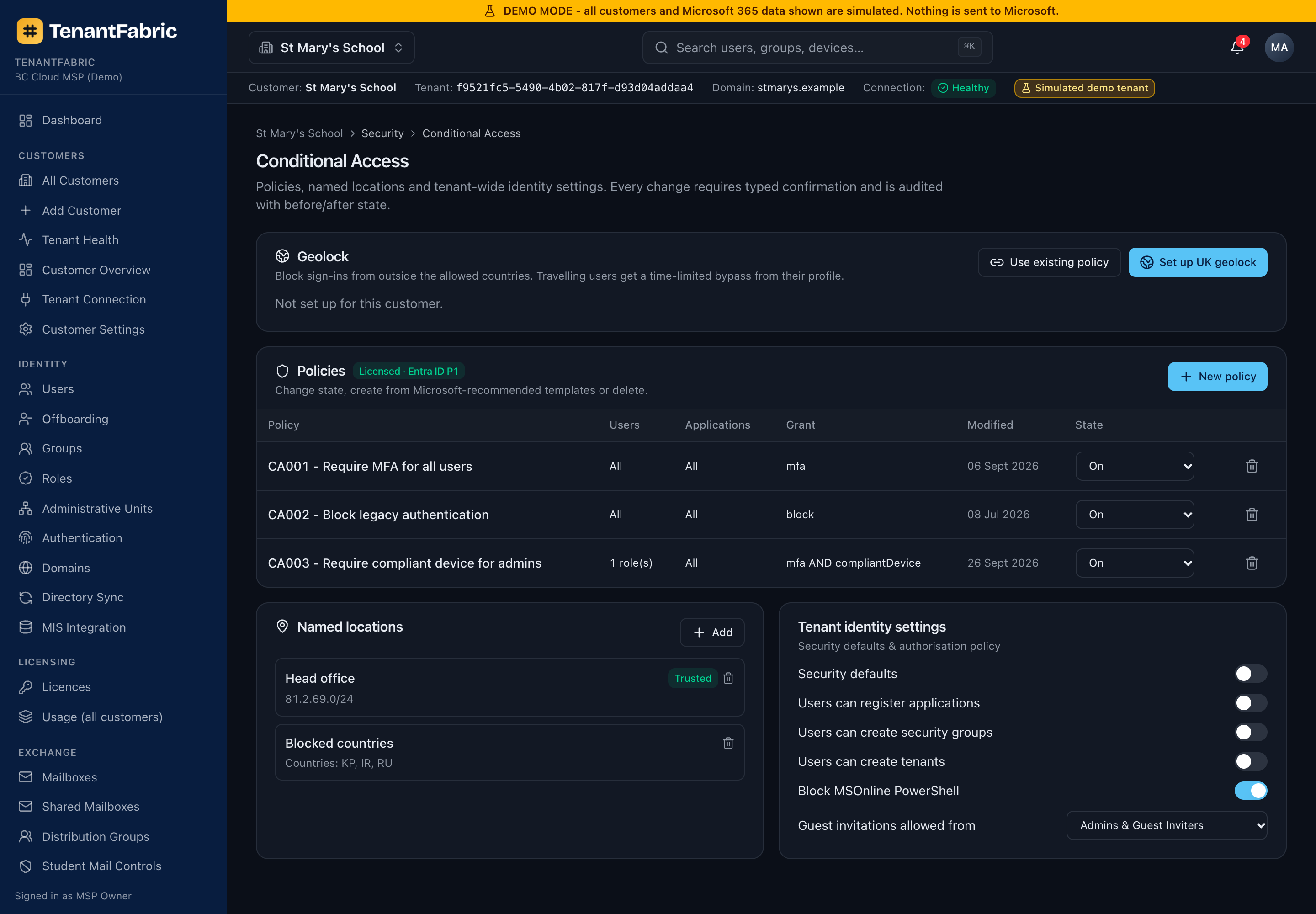
Lists the tenant's Conditional Access policies with their users, applications, grant controls, state and last-modified date. The Geolock panel manages a UK-only sign-in restriction (with the per-user travel bypass), and Named locations and tenant identity settings round out the page. Use New policy or Use existing policy to deploy from a template. Conditional Access requires Entra ID P1, which the page checks for.
Applications (app registrations & enterprise apps)
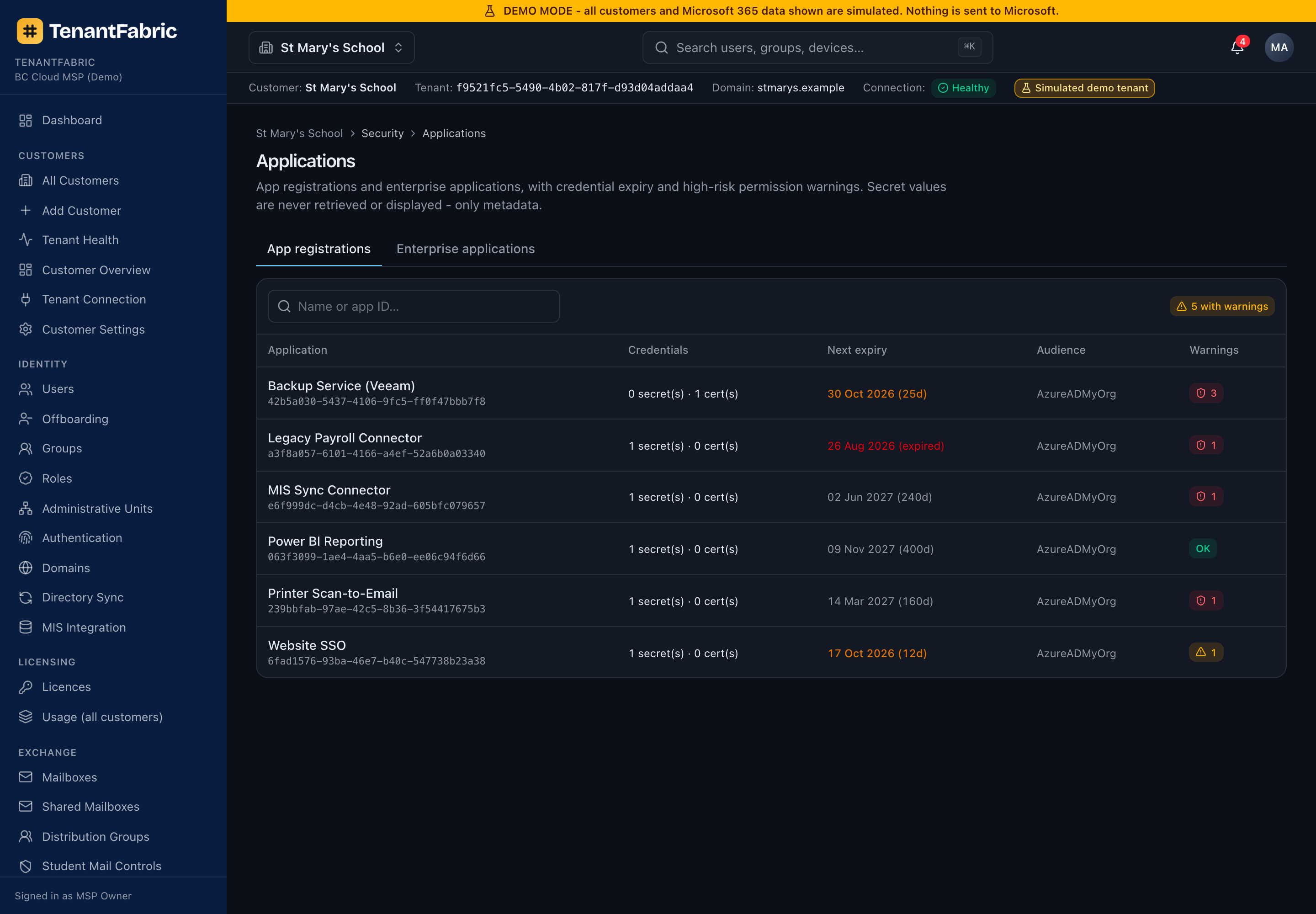
Two tabs. App registrations lists the tenant's own registered apps with their credentials, next secret/cert expiry (so you catch an expiring secret before it breaks an integration), audience and warnings. Enterprise applications lists service principals / consented third-party apps. This is where you review OAuth consent risk and credential hygiene.
Security overview
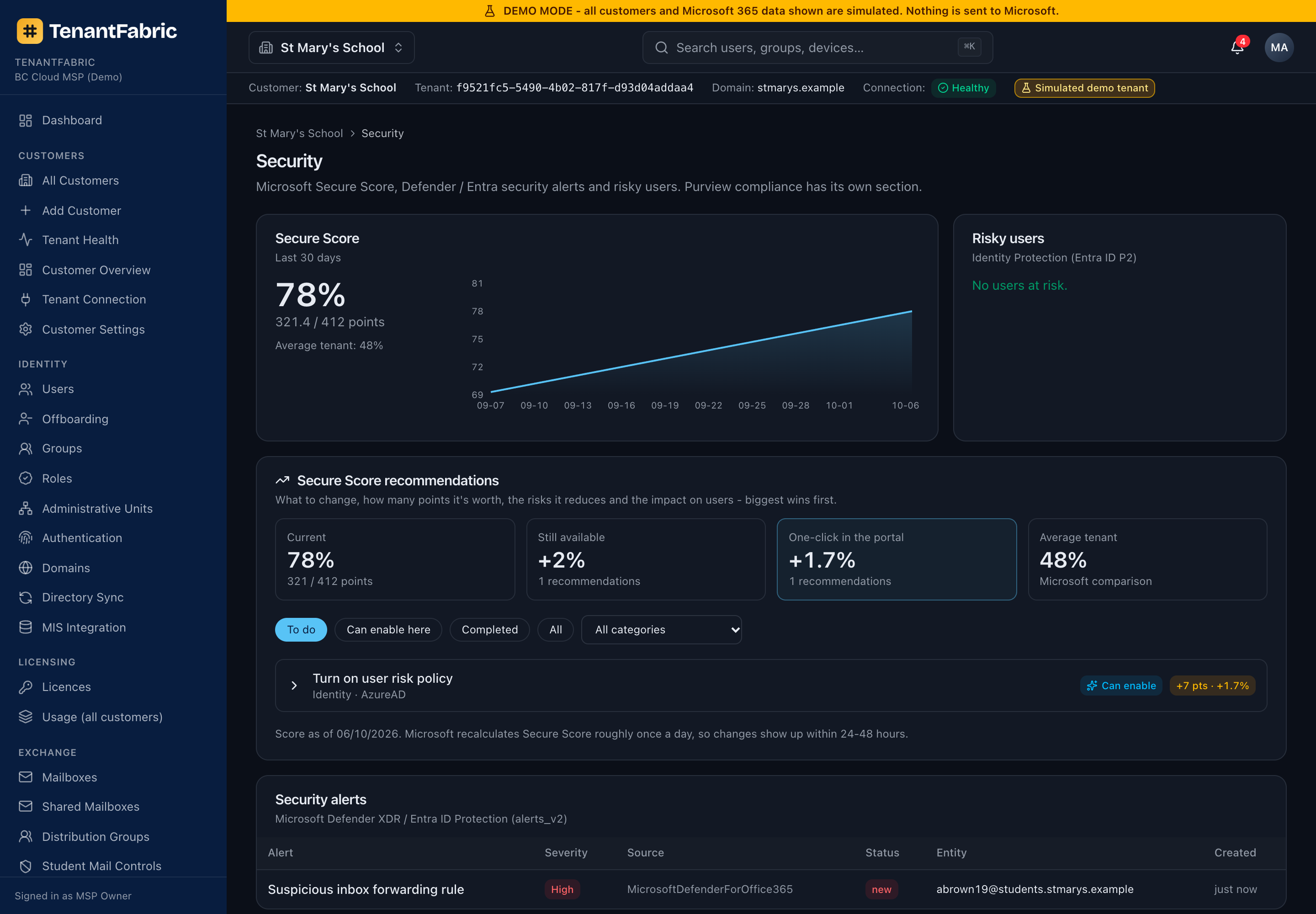
The tenant's security posture on one page: Secure Score (current and trend), risky users from Entra ID Protection, prioritised Secure Score recommendations (with a "can enable here" marker where TenantFabric can action it directly), and the live security alerts feed with severity, source, entity and status.
Mail investigation
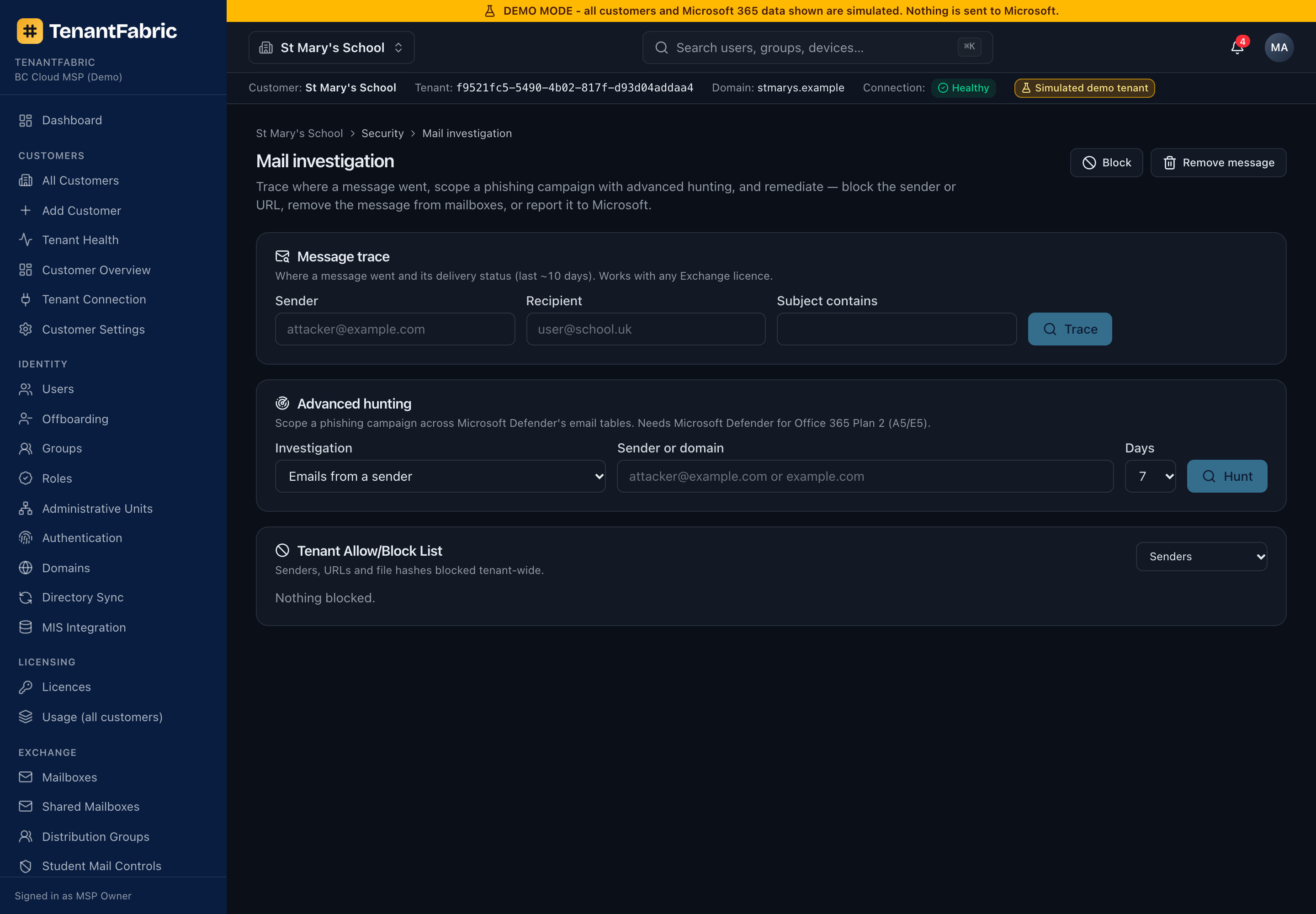
The incident-response toolkit for email. Message trace follows a message's path and delivery; Advanced hunting runs KQL-style queries across mail telemetry; and the Tenant Allow/Block List lets you block a sender/domain or remove a delivered malicious message. Use it when a customer reports phishing or a mis-delivered mail.
Compliance (Purview)
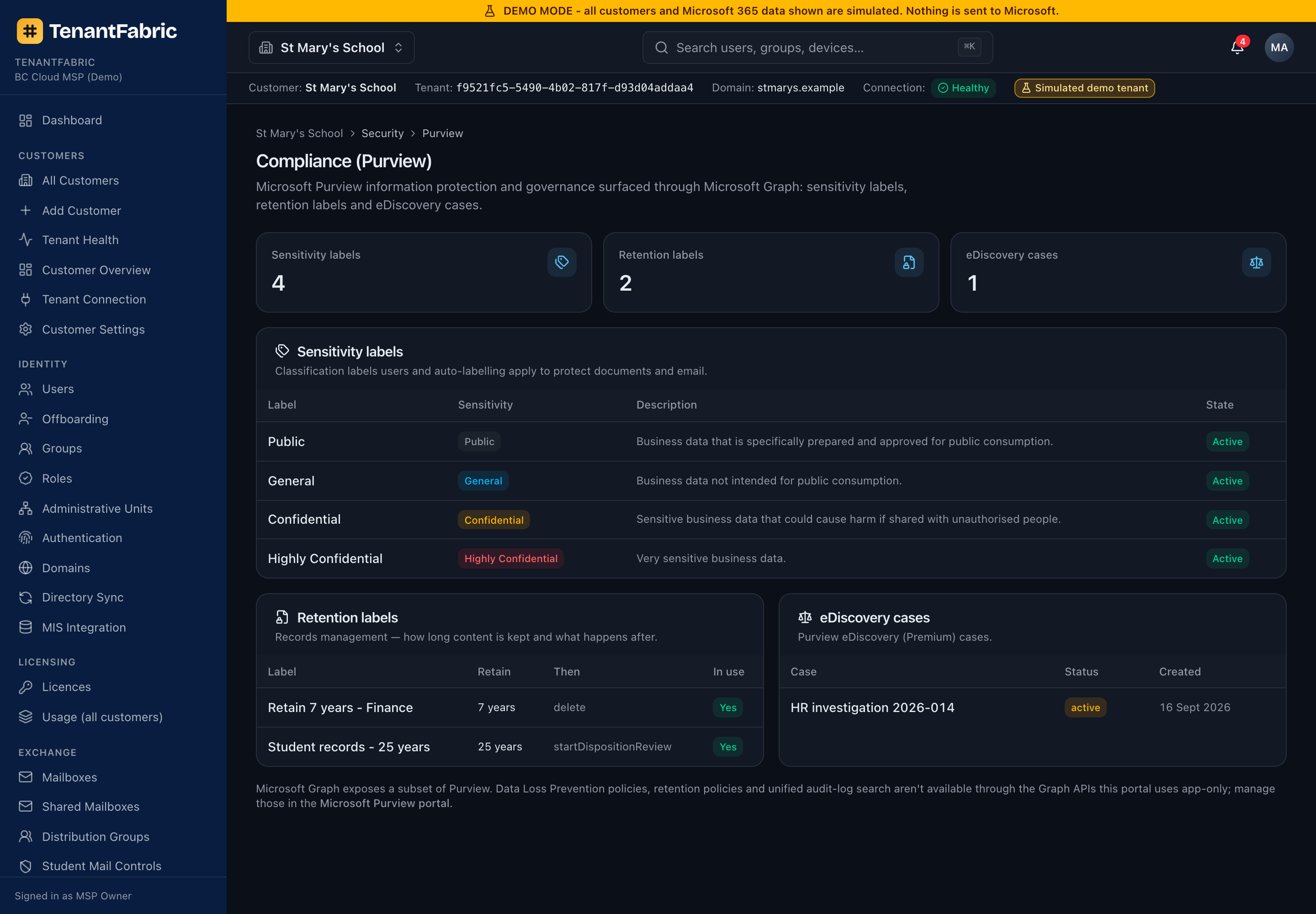
A read view of Microsoft Purview information governance: sensitivity labels (with sensitivity, scope and whether they're in use), retention labels (retain period and the action taken afterward) and eDiscovery cases with their status. It answers "what data-protection controls does this tenant have configured?".
Configuration & drift
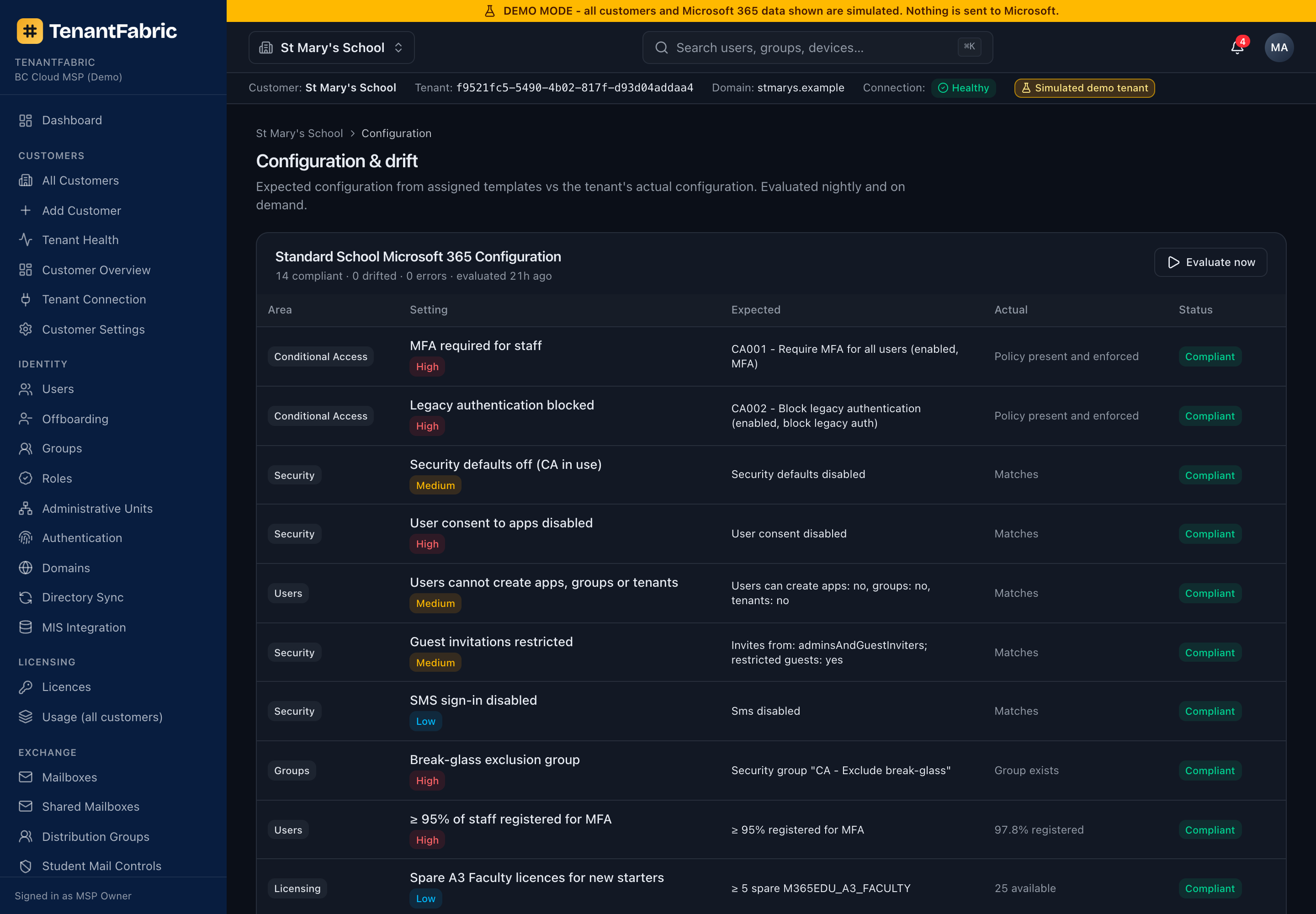
Evaluates the customer tenant against an assigned configuration template (your house standard) and lists every checked setting with its expected value, the tenant's actual value and a pass/fail status. Where the two differ, that's configuration drift - the tenant has moved away from your baseline. Evaluate now re-runs the check.
Reports
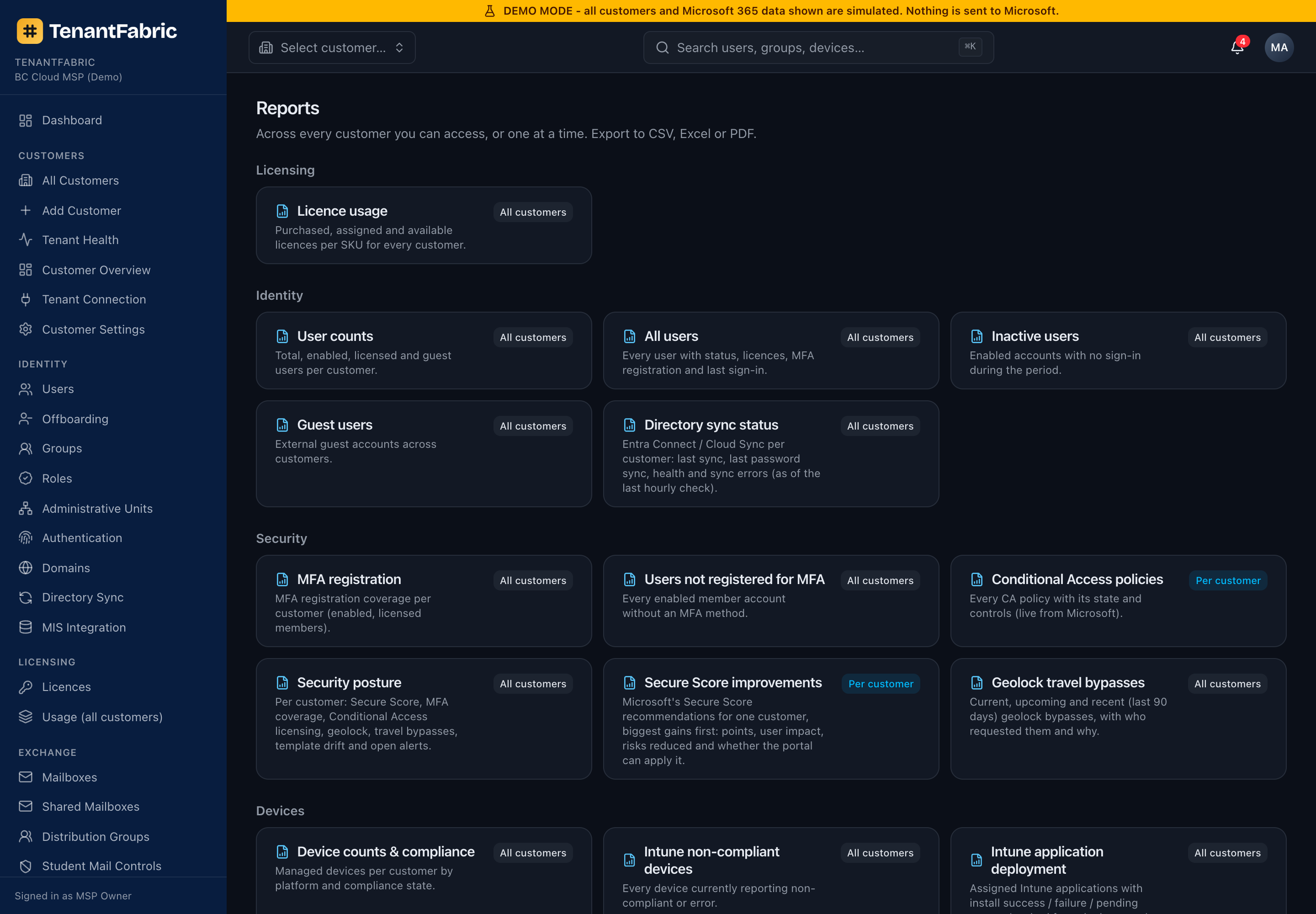
A catalogue of ready-made reports grouped by Licensing, Identity, Security and Devices - licence usage, user and guest counts, inactive users, MFA registration gaps, Conditional Access policies, Secure Score improvements, device compliance, the full Intune reporting set (app deployment, compliance/config health, device configuration issues, Autopilot devices and issues) and the cross-customer Intune fleet overview. Pick a report, choose a customer (or all permitted customers) and any parameters, then run it on screen or export to CSV, Excel or PDF. Exports require the reports.export permission and are audited.
Jobs
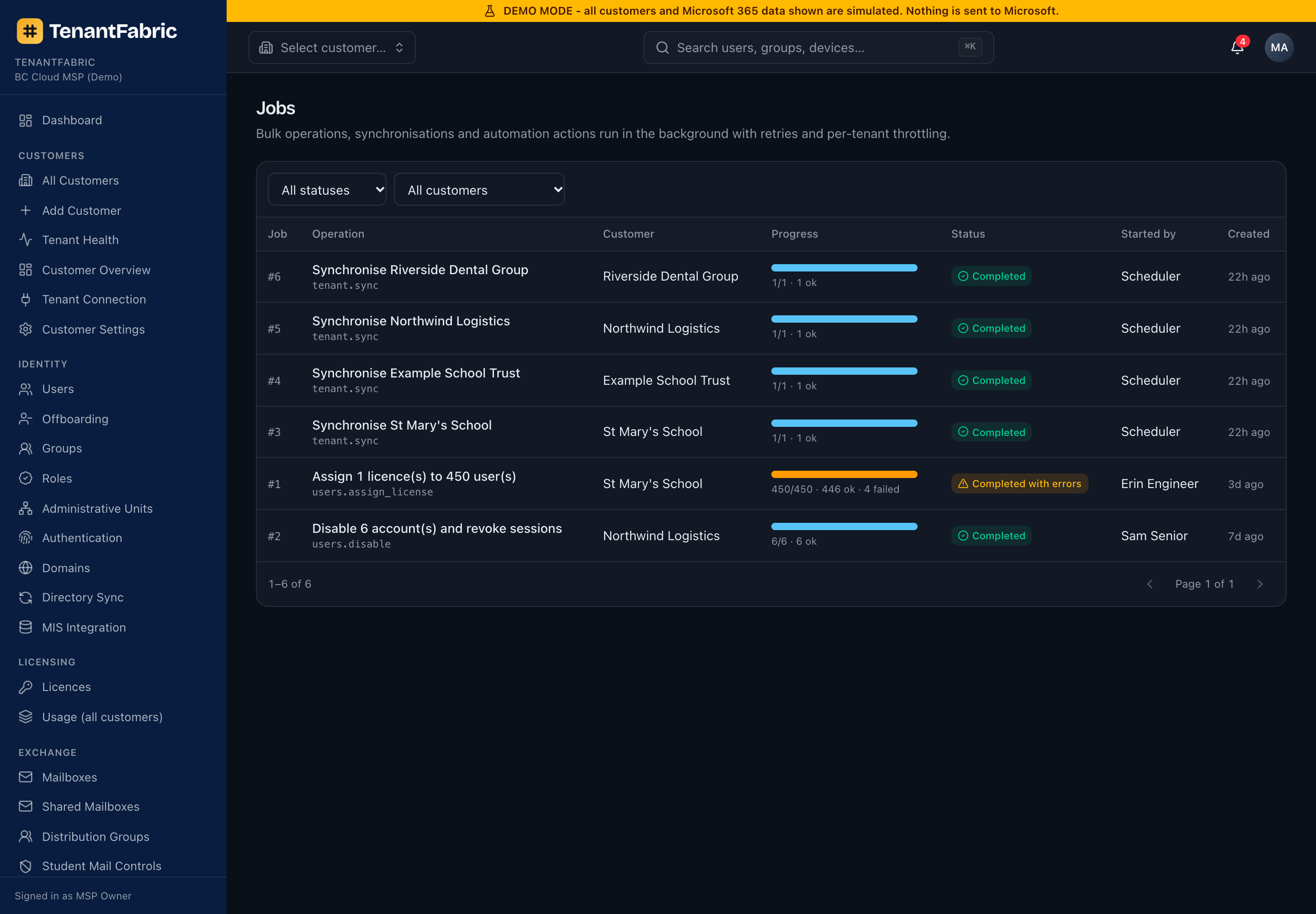
Long-running and bulk operations (bulk user create, offboarding, bulk licence changes, scheduled syncs) run as background jobs so the UI never blocks. This page lists each job with its operation, customer, progress, status, who started it and when. Open a job to see per-item results and any errors.
Notifications
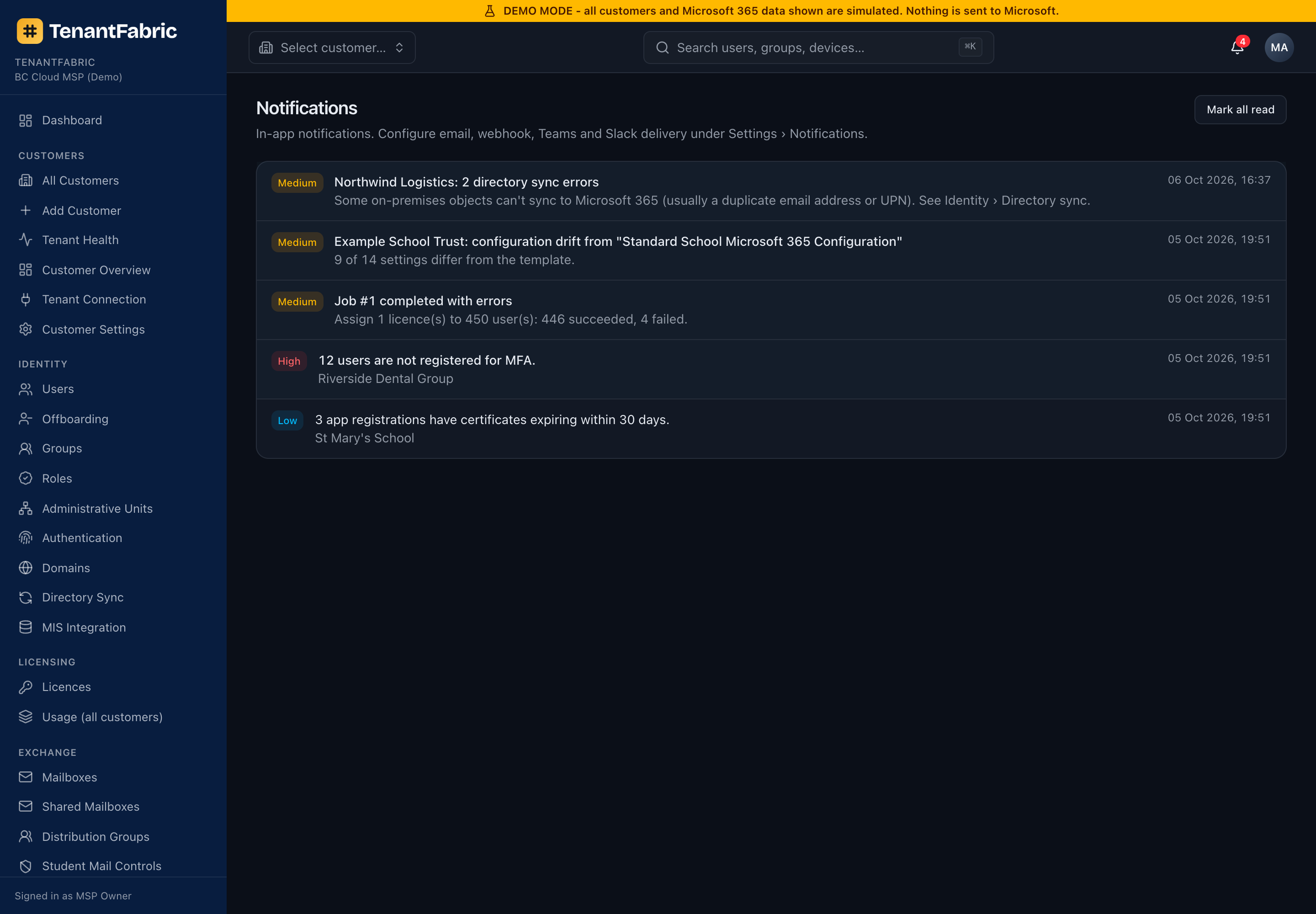
Your personal notification feed - job completions, alerts routed to you, and system messages. Mark all read clears the unread count on the bell. What generates and routes notifications is configured per-organisation under Settings.
Your account settings
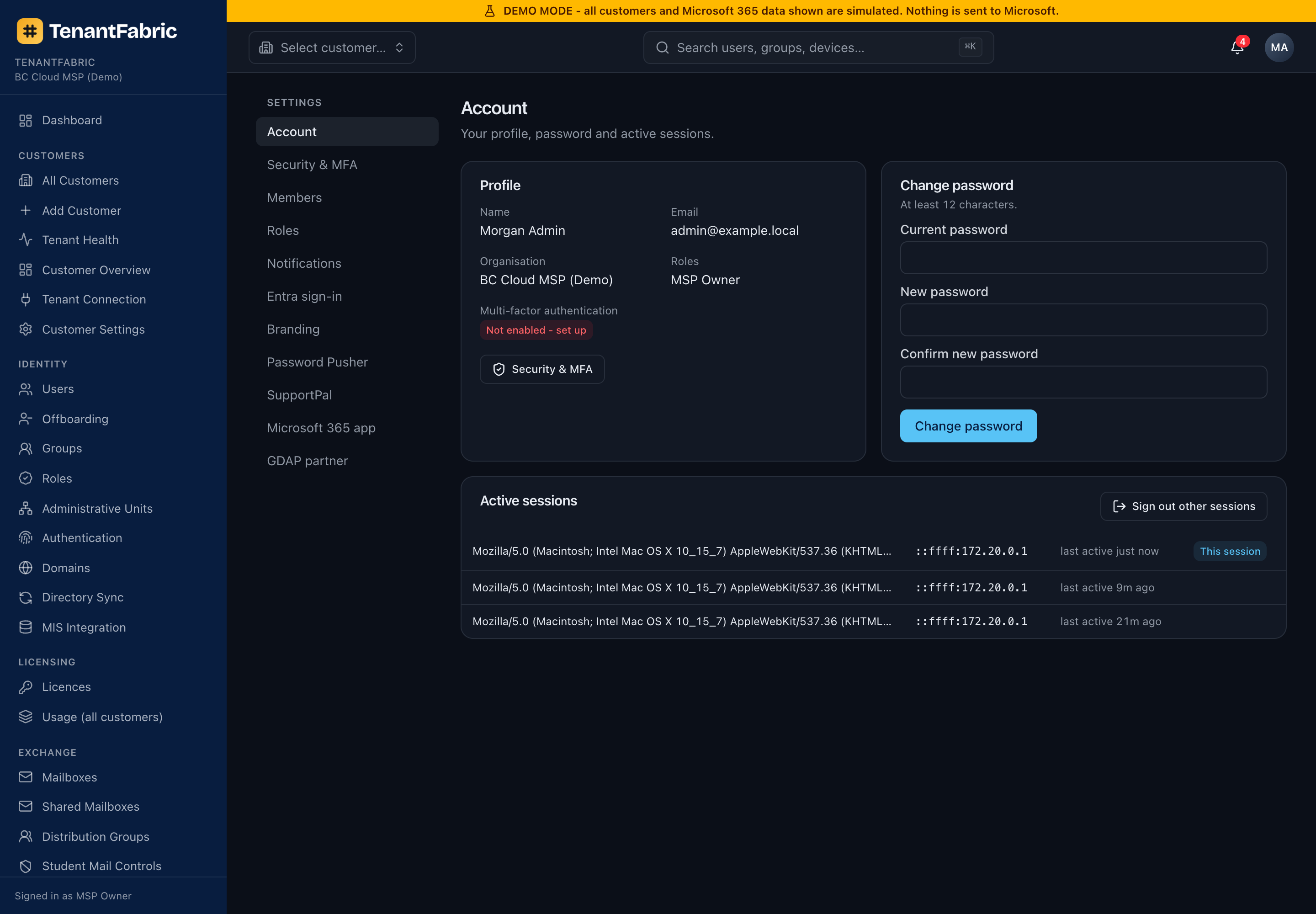
Everyone has a personal Account page: edit your profile, change your password, and review and sign out your active sessions. The Security & MFA tab is where you set up your authenticator. The remaining Settings tabs (Members, Roles, Branding, Microsoft 365 app, GDAP, etc.) are organisation-level and covered in Part 2 - they appear only if your role allows.
Part 2 - Administrator Guide
Part 2 is for MSP owners, administrators and senior engineers. It covers onboarding customers and connecting their tenants, the cross-customer MSP tools, automation, and running TenantFabric itself - members, roles, branding, the Microsoft app registration, GDAP and the audit trail. Pages here are marked MSP / admin and need an MSP-level role.
All customers
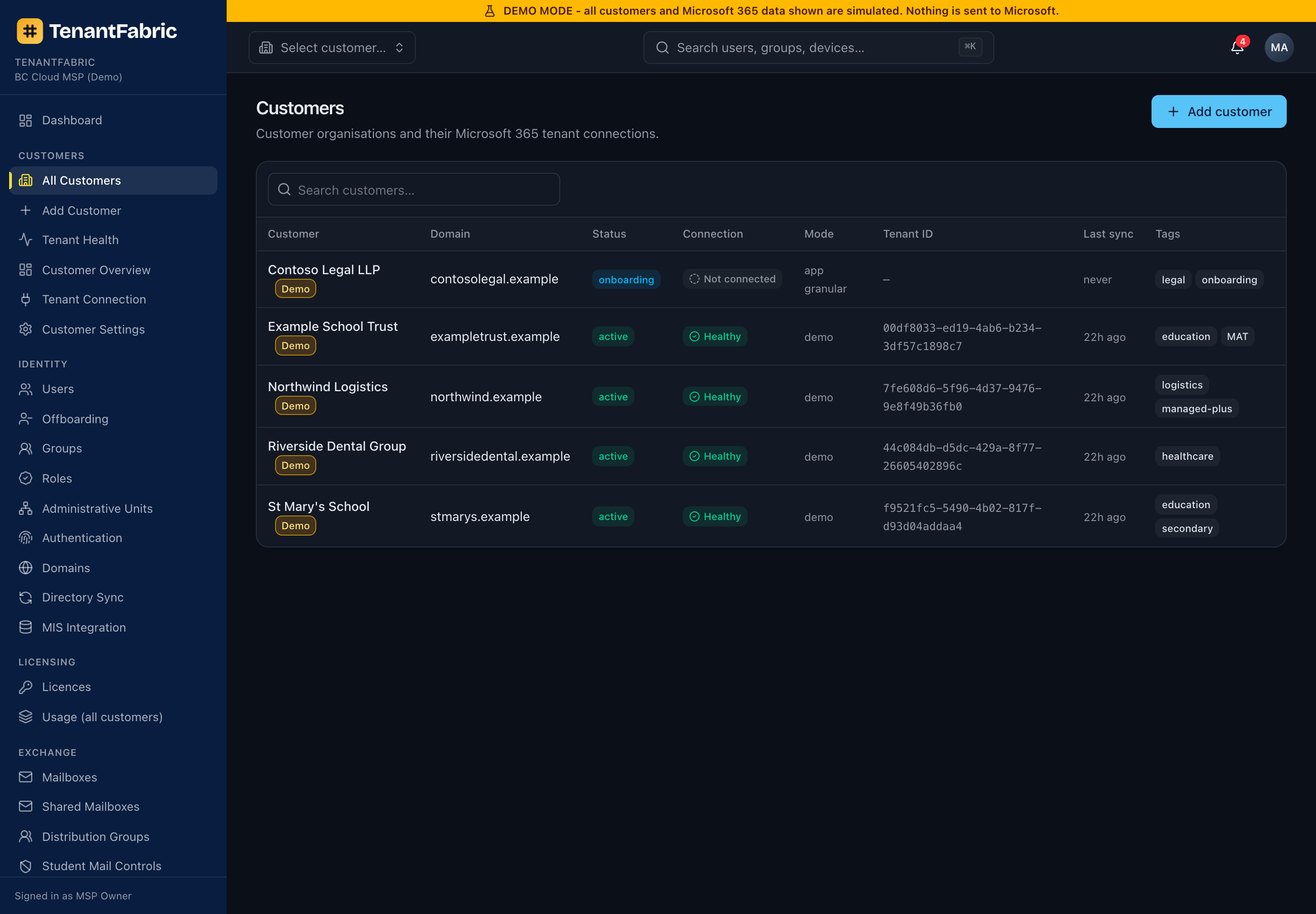
The master list of every customer in your organisation - domain, status, connection, connection mode, tenant ID, last sync and tags. It's the index you work from; click a customer to enter its context, or use the tags and search to find one.
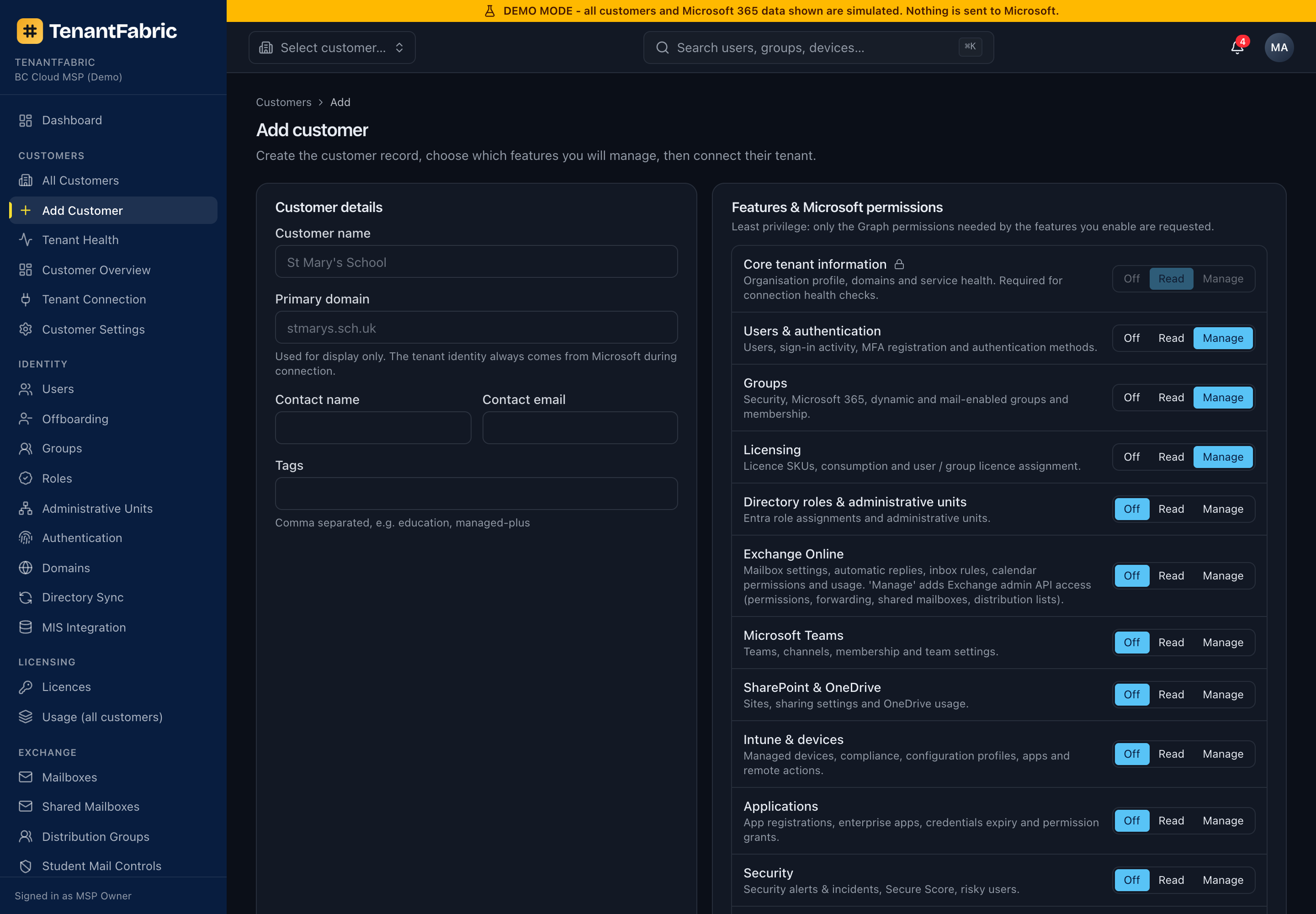
Add a customer
Creating a customer is step one of onboarding. You enter the customer's details (name, primary domain, contact, tags) and - crucially - choose its feature modules and the Microsoft permission level for each: Off, Read or Manage. Those choices drive exactly which Microsoft Graph permissions TenantFabric will request when you connect the tenant, keeping access least-privilege. After creating the customer you connect its tenant (next section).
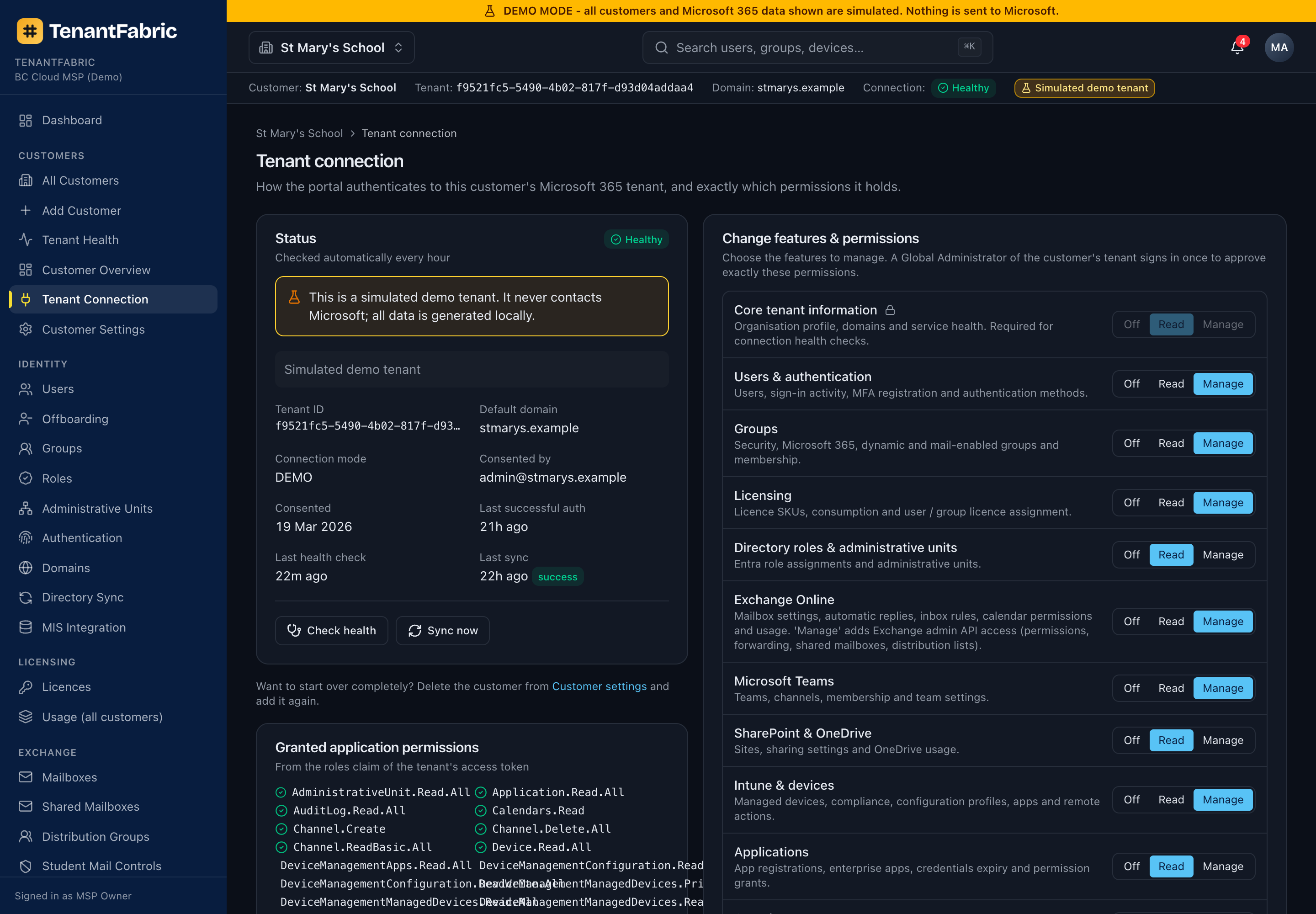
Tenant connection & consent
This is where a customer's tenant is actually linked to TenantFabric. It shows the live connection Status, the granted application permissions, and a Change features & permissions panel mirroring the module picker. To connect (or re-consent after changing modules) you run the Microsoft admin-consent flow; TenantFabric then verifies which scopes were granted and flags any that are missing. Check health re-tests authentication and permissions; Sync now queues a data refresh.
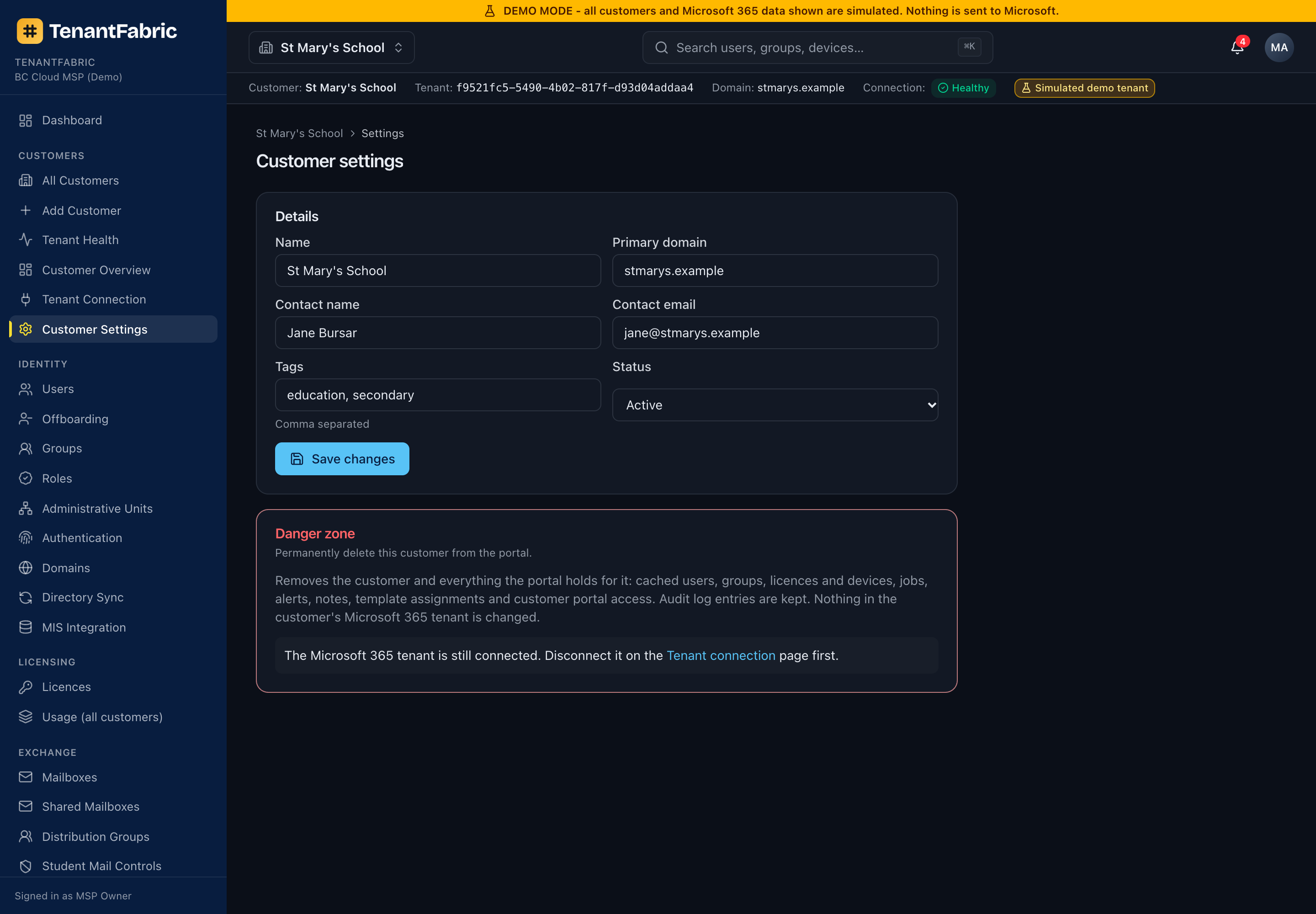
Customer settings
Edit the customer's details and tags, and - in the Danger zone - archive or delete the customer. Archiving keeps the record but removes it from active lists; deletion is permanent and confirmed.
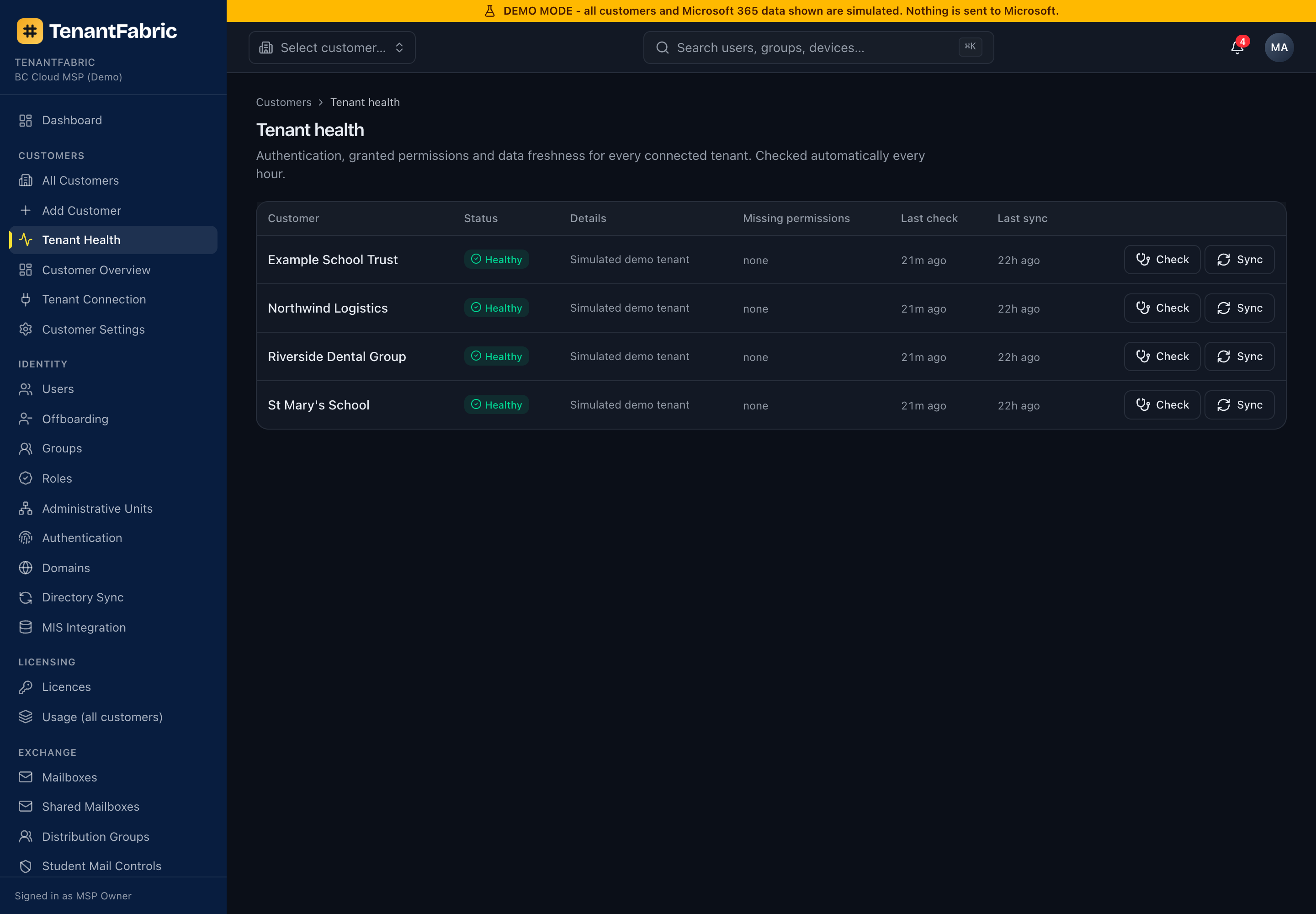
Tenant health
A cross-customer operations board for connection health. For every connected tenant it shows the authentication status, a details note, the count of missing permissions, and the last health-check and last-sync times. Per-row Check re-tests the tenant and Sync queues a refresh. TenantFabric also runs these health checks automatically every hour.
Intune fleet overview
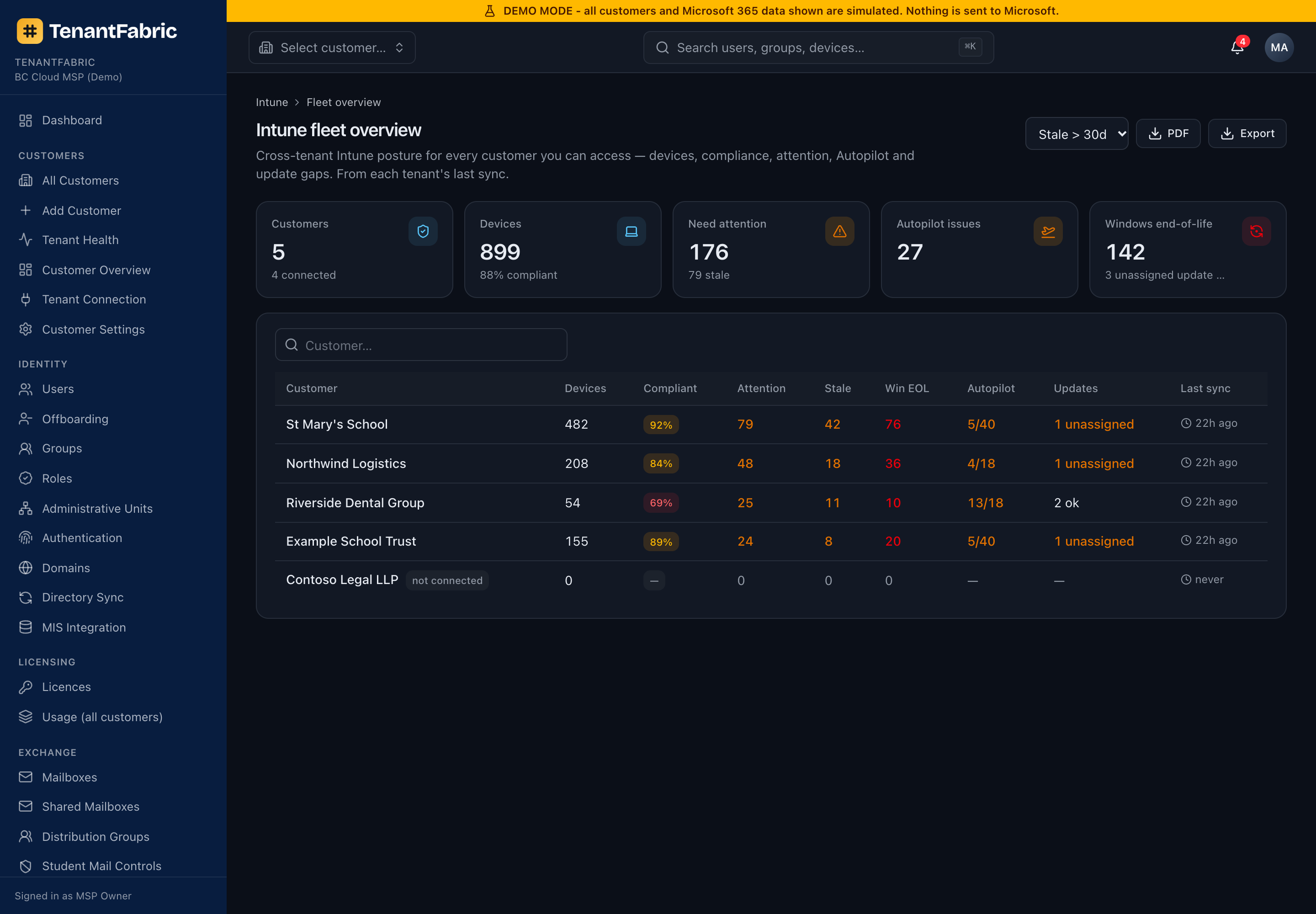
Every customer's Intune posture on one screen. Fleet KPIs total devices, compliance, devices needing attention, stale devices, Autopilot issues, Windows end-of-life and unassigned update policies across the estate. The per-customer table (sorted worst-first) lets you spot which tenant needs work and click straight into its Intune reporting. An adjustable stale threshold recomputes live, and the whole view exports to PDF or Excel - a ready-made board-level estate report. The companion Usage (all customers) page under Licensing does the same for licences.
Alerts
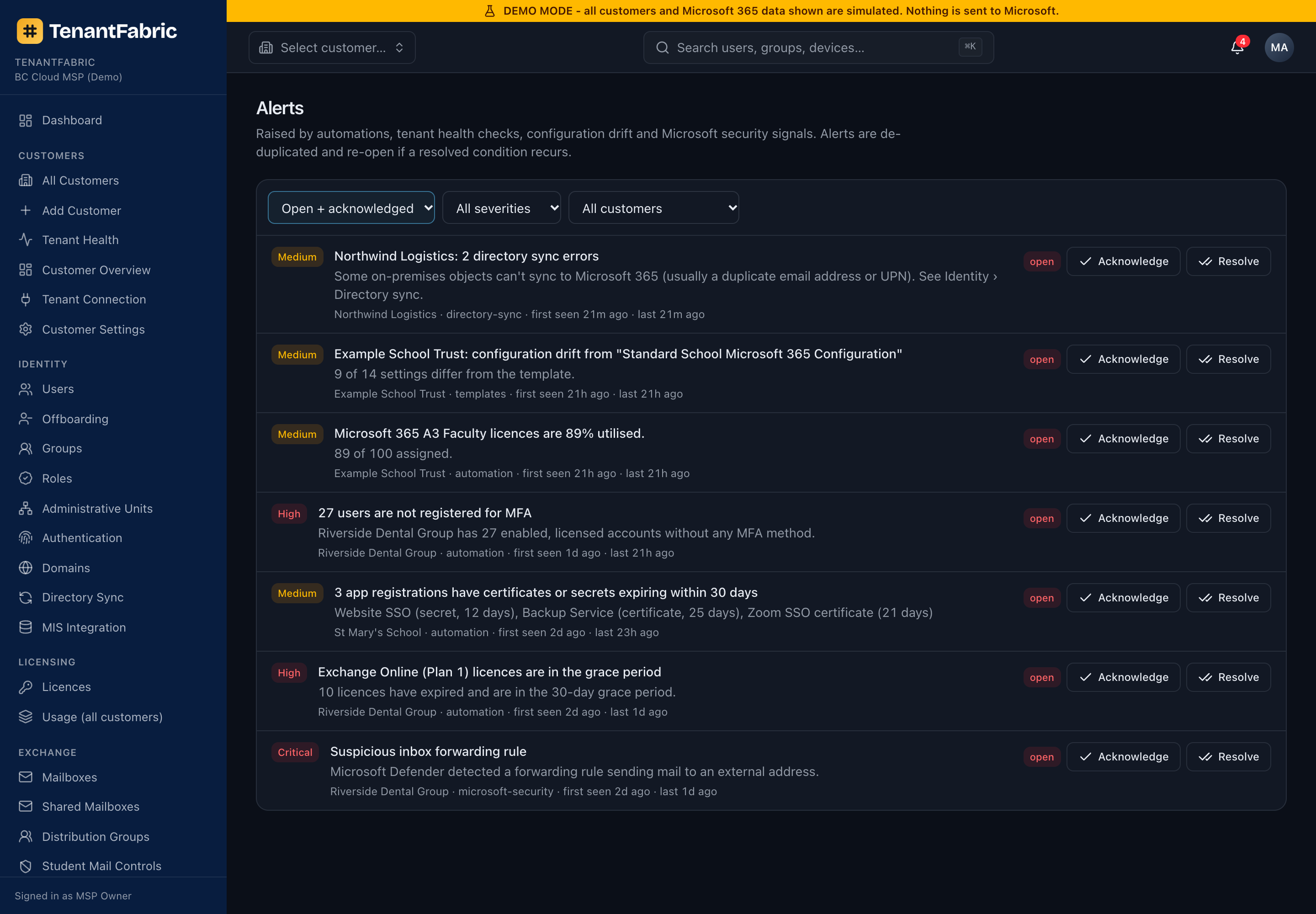
The organisation-wide alert queue - security alerts from Microsoft, risky-user detections, configuration-drift findings and licence-threshold warnings, across all customers. Each alert carries a severity, customer, entity and timestamp. Acknowledge marks an alert as seen; Resolve closes it. Alerts that Microsoft no longer reports are resolved automatically.
Automations
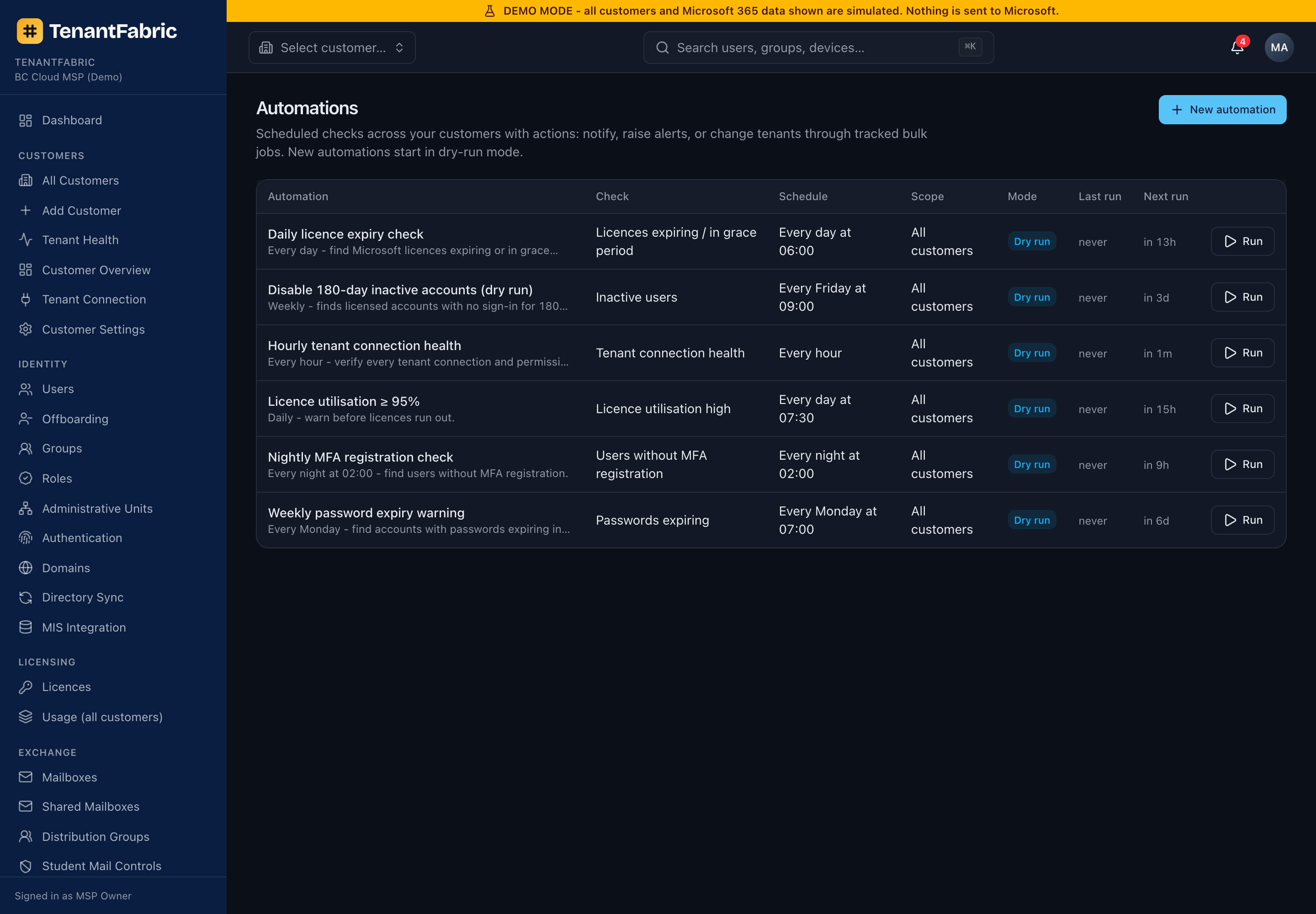
Automations run a check on a schedule and optionally take action. The list shows each automation's check, schedule, scope (which customers), mode (report-only vs enforce), and last/next run. Run triggers one immediately.
Building an automation
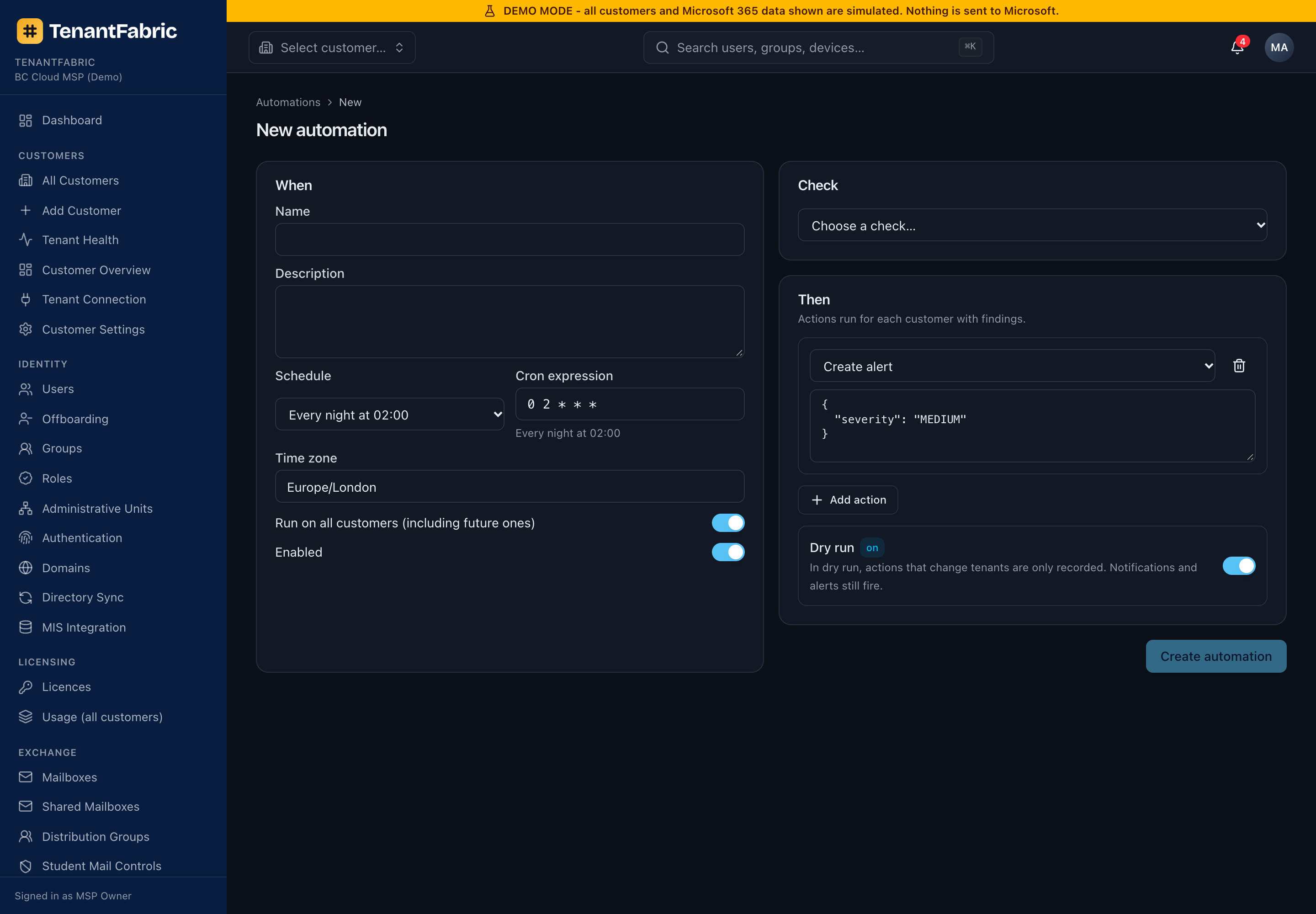
The builder is a simple When → Check → Then flow: choose the schedule (When), the condition to evaluate (Check), and one or more actions to take (Then). Scope it to specific customers or all, and choose report-only to trial it safely before enforcing.
Configuration templates
Templates are your house standards - the settings a well-configured tenant should have. Start from a baseline gives you a ready-made starting point (e.g. "Standard School Microsoft 365 Configuration"), or build your own with New template. Assign a template to customers and TenantFabric measures each tenant against it on the Configuration & drift page.
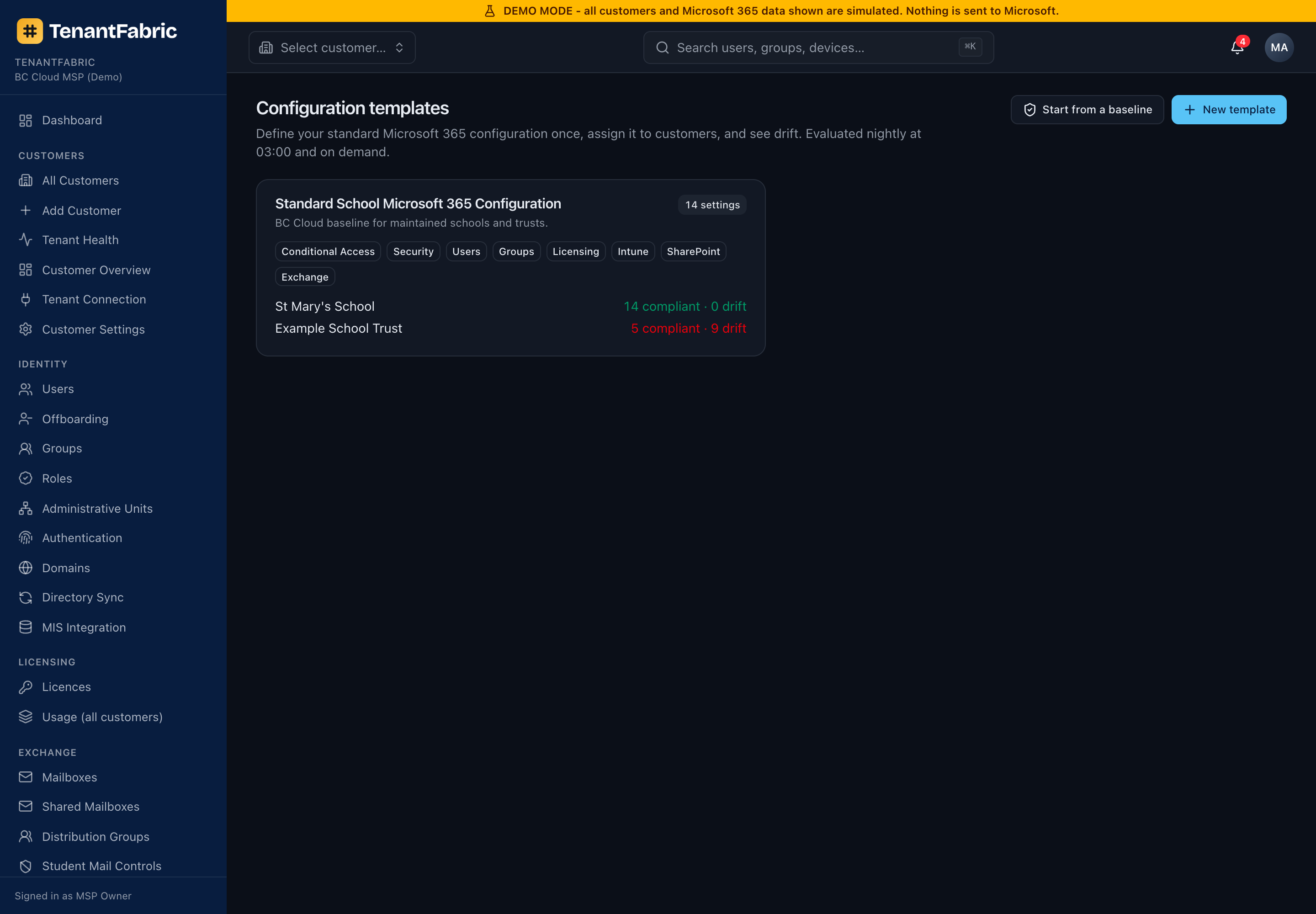
Tenant comparison
Compare two (or more) tenants side by side to spot inconsistencies - different Conditional Access, licence mixes, security settings or configuration. Pick the tenants and the areas to compare, then review the differences. Useful for standardising a new acquisition against your reference tenant.
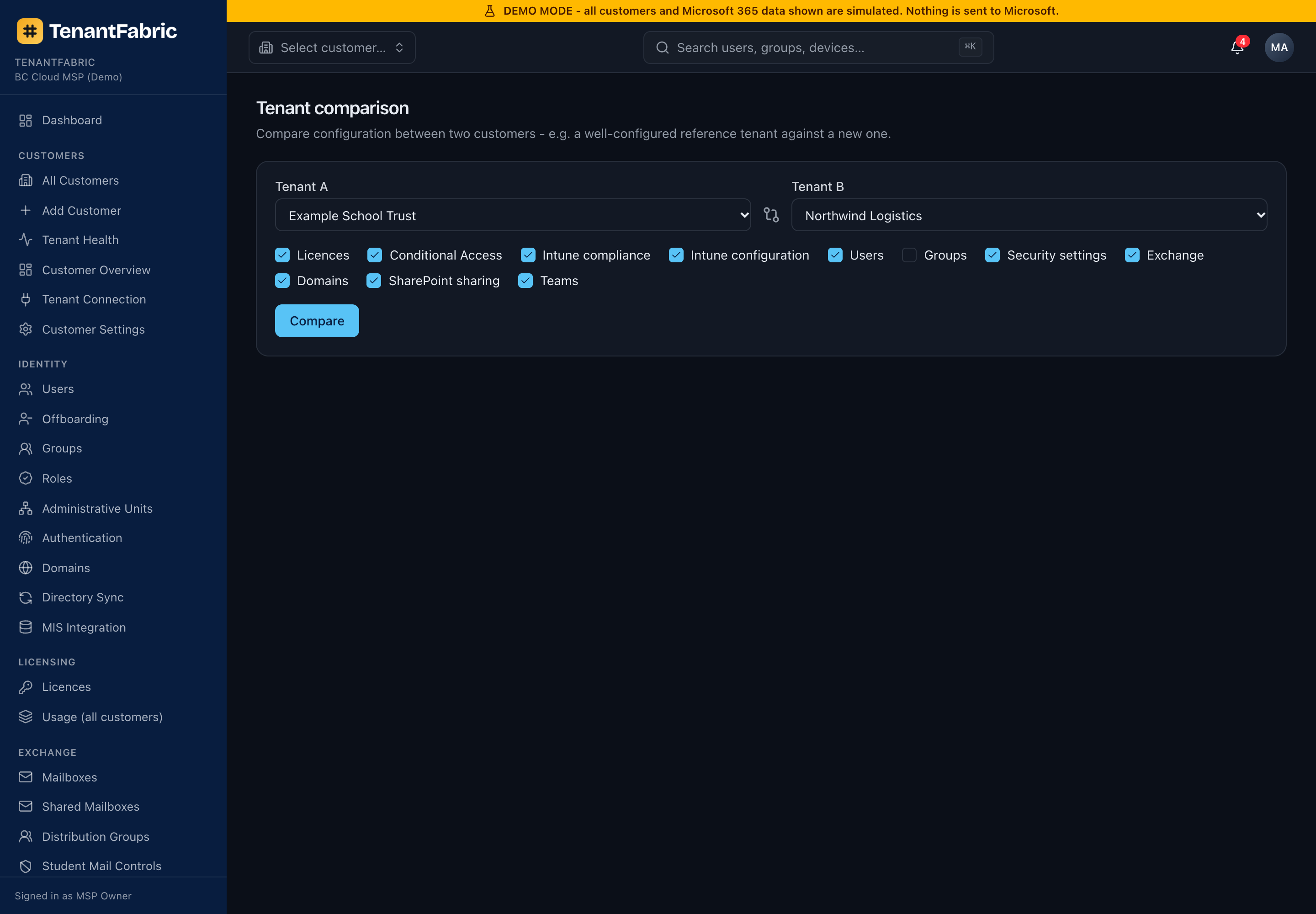
Audit logs
Every action taken in TenantFabric is recorded here: time, actor, customer, action, the resource affected, the result and the source IP. It's your accountability trail - who reset whose password, who changed a policy, who exported which report. Filter by customer, actor or action and export to CSV or Excel for evidence.
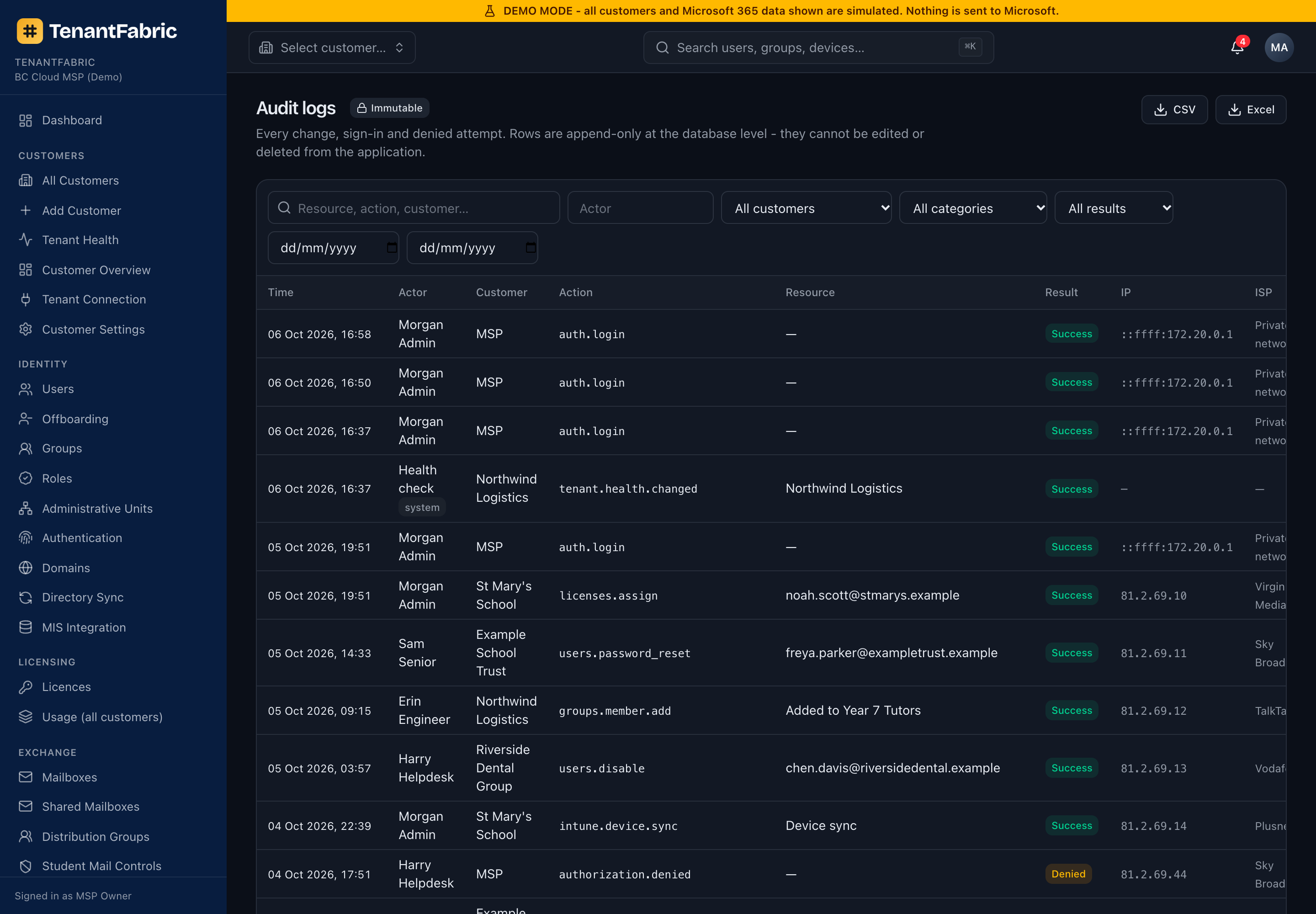
Settings - members
Manage the people who use TenantFabric. The list shows each member's type (MSP or customer), assigned roles, sign-in method, last sign-in and status. Invite member adds a new user and assigns their role(s); Deactivate disables access. Customer-type members are scoped to their own tenant only.
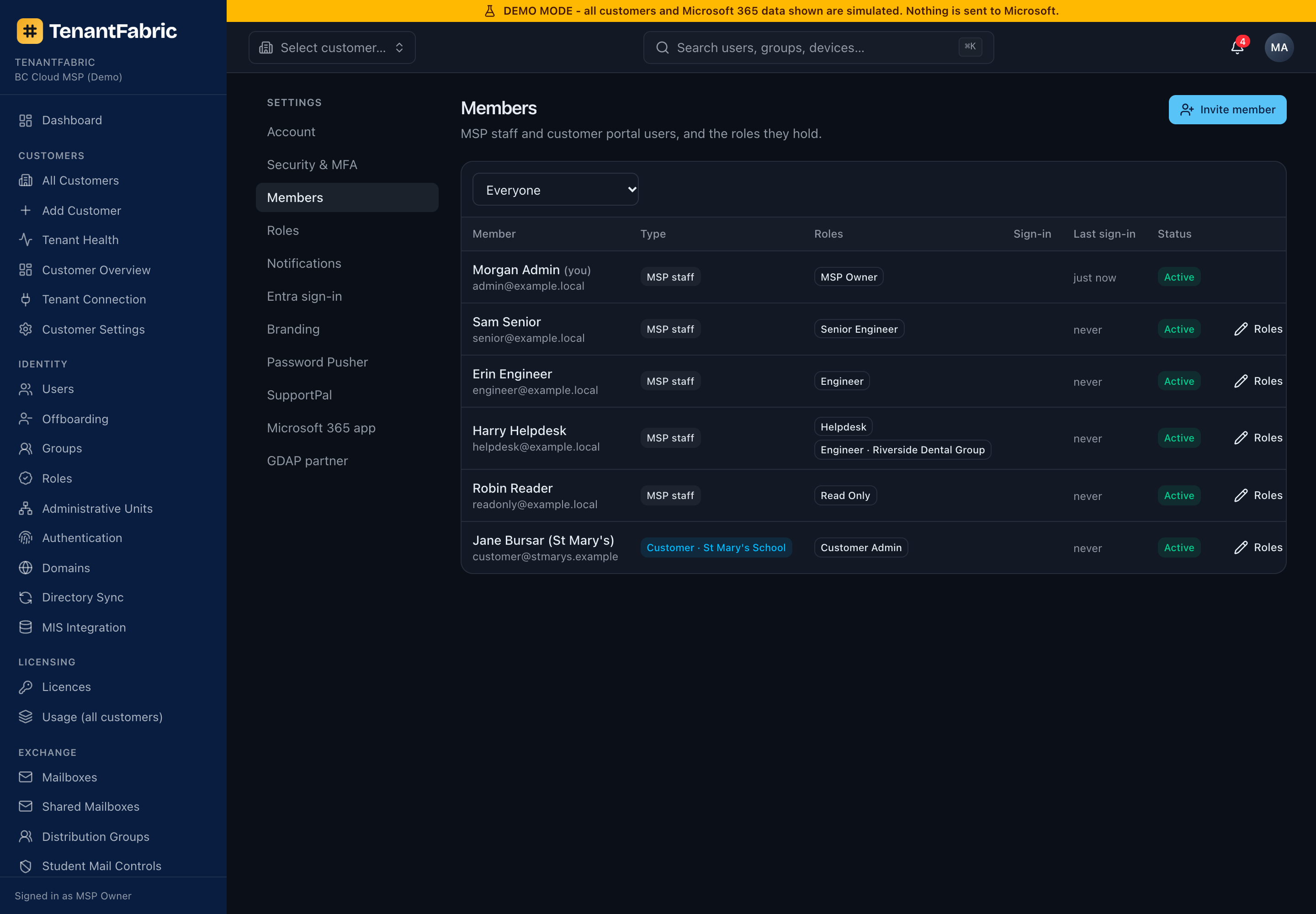
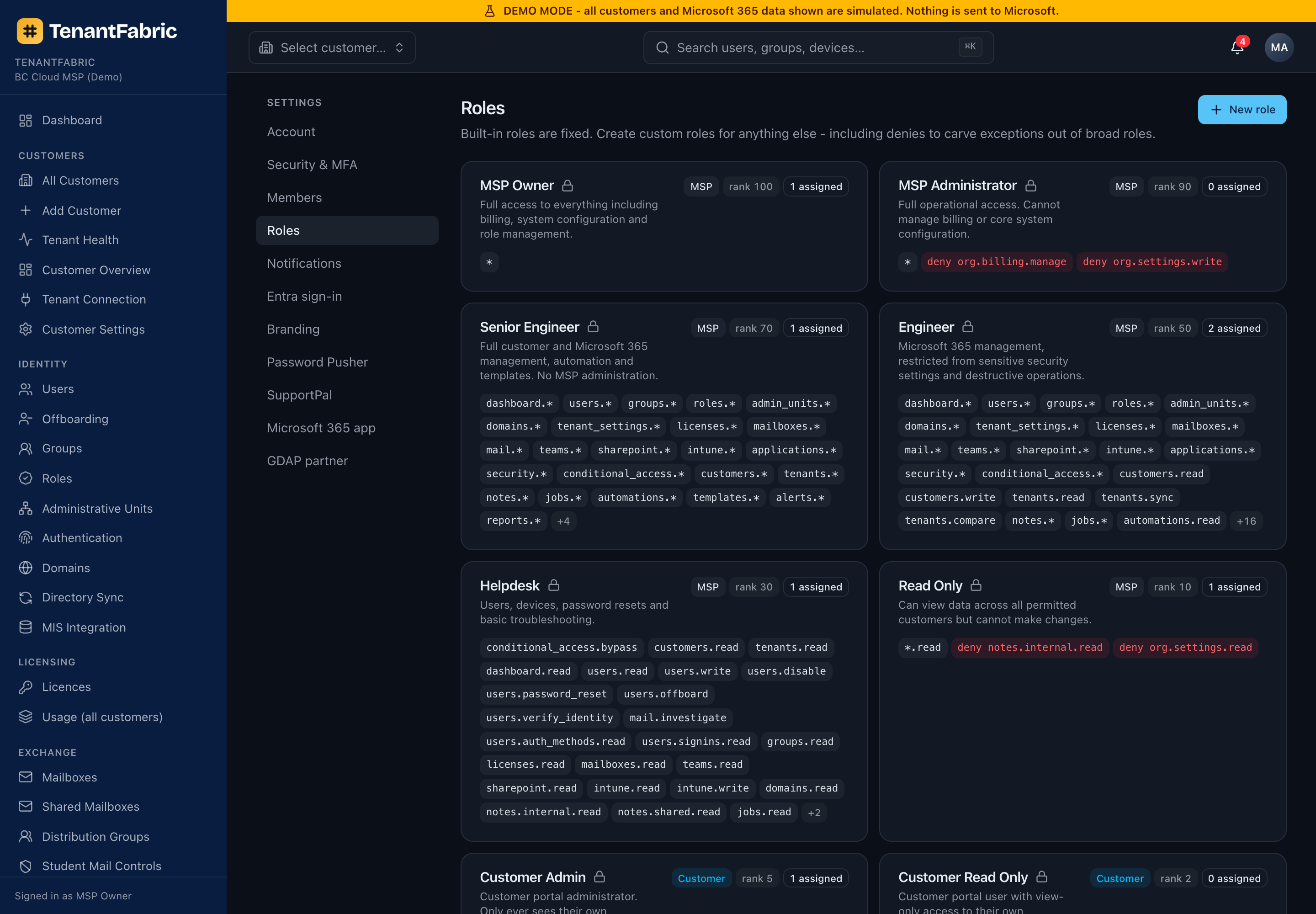
Settings - roles (RBAC)
Defines what each TenantFabric role can do. Built-in roles range from MSP Owner (everything) down through MSP Administrator, Senior Engineer, Engineer, Helpdesk and Read Only, plus customer-scoped Customer Admin and Customer Read Only. New role creates a custom role with a precise permission set. Permissions are granular (e.g. users.write, intune.wipe, reports.export) so you can grant exactly what a role needs.
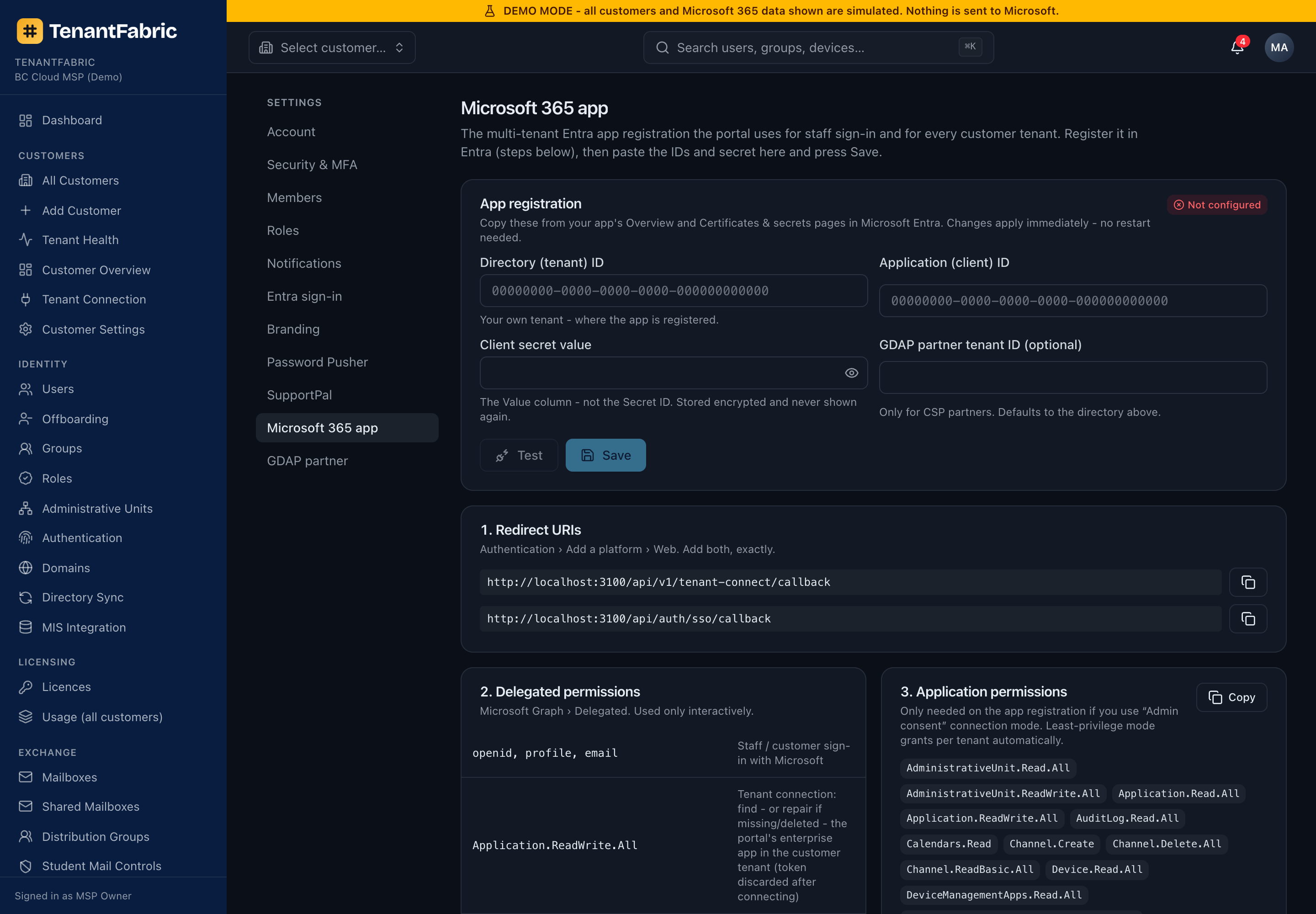
Settings - Microsoft 365 app
This is TenantFabric's own Microsoft Entra app registration - the identity it uses to call Graph. The page walks through the redirect URIs, delegated and application permissions, and shows the mapping of feature modules → permissions and the Microsoft API dependencies each page relies on (with v1.0/beta version). Test validates the configuration. This is a one-time setup you maintain as modules evolve.
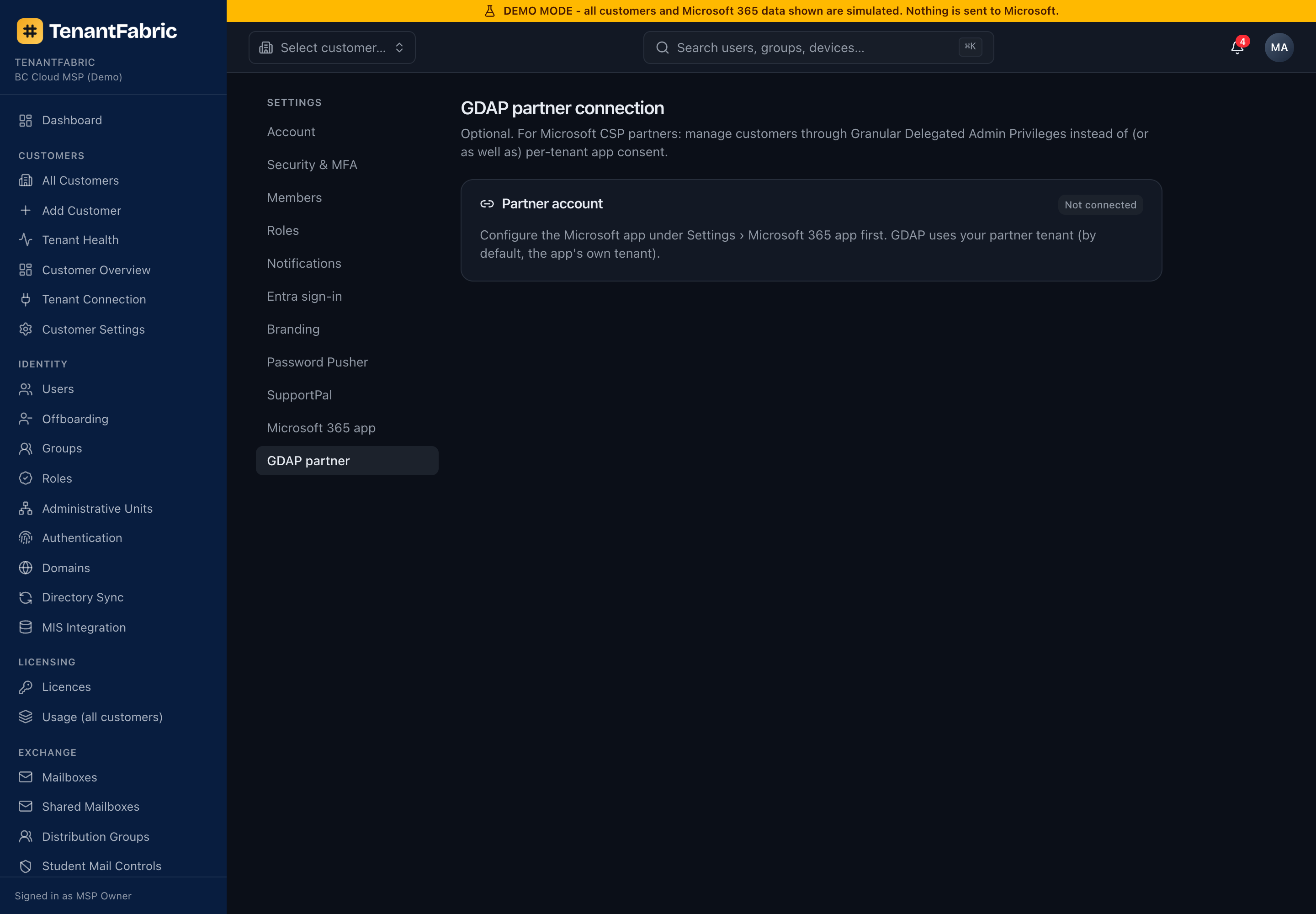
Settings - GDAP partner
If you manage customers through the Microsoft partner programme, connect your GDAP (Granular Delegated Admin Privileges) partner account here. This lets TenantFabric act with delegated admin rights into customer tenants within the granular roles GDAP grants, rather than per-tenant app consent.
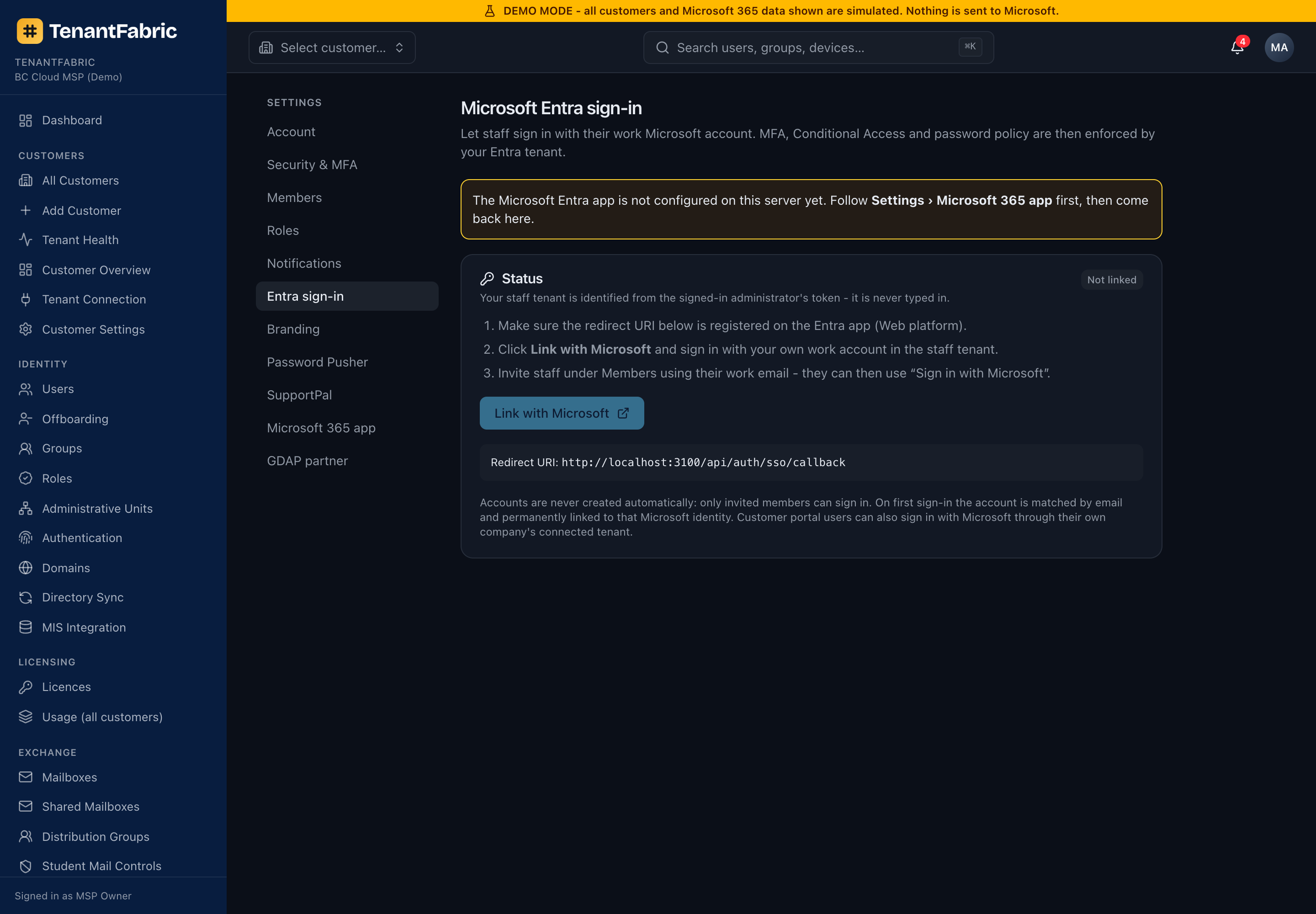
Settings - Entra sign-in (SSO)
Enable Microsoft Entra single sign-on so your team signs into TenantFabric with their Microsoft work account instead of a separate password. Link with Microsoft connects your organisation's Entra tenant; once enabled, members can use "Sign in with Microsoft".
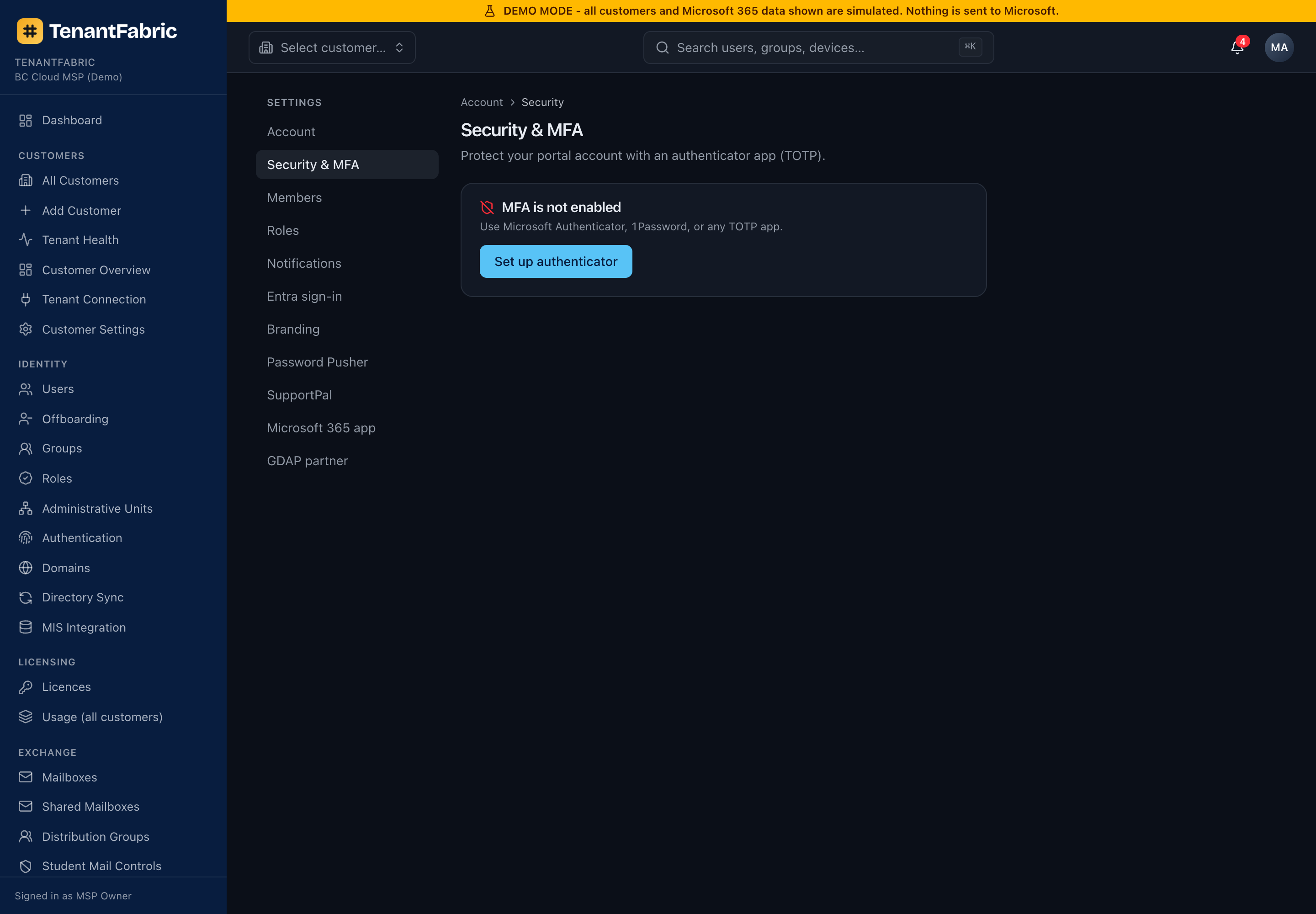
Settings - security & MFA
Your personal account security, including setting up an authenticator app for multi-factor sign-in. Organisation policy can require MFA for all members; this is where each member enrols. Set up authenticator starts the enrolment.
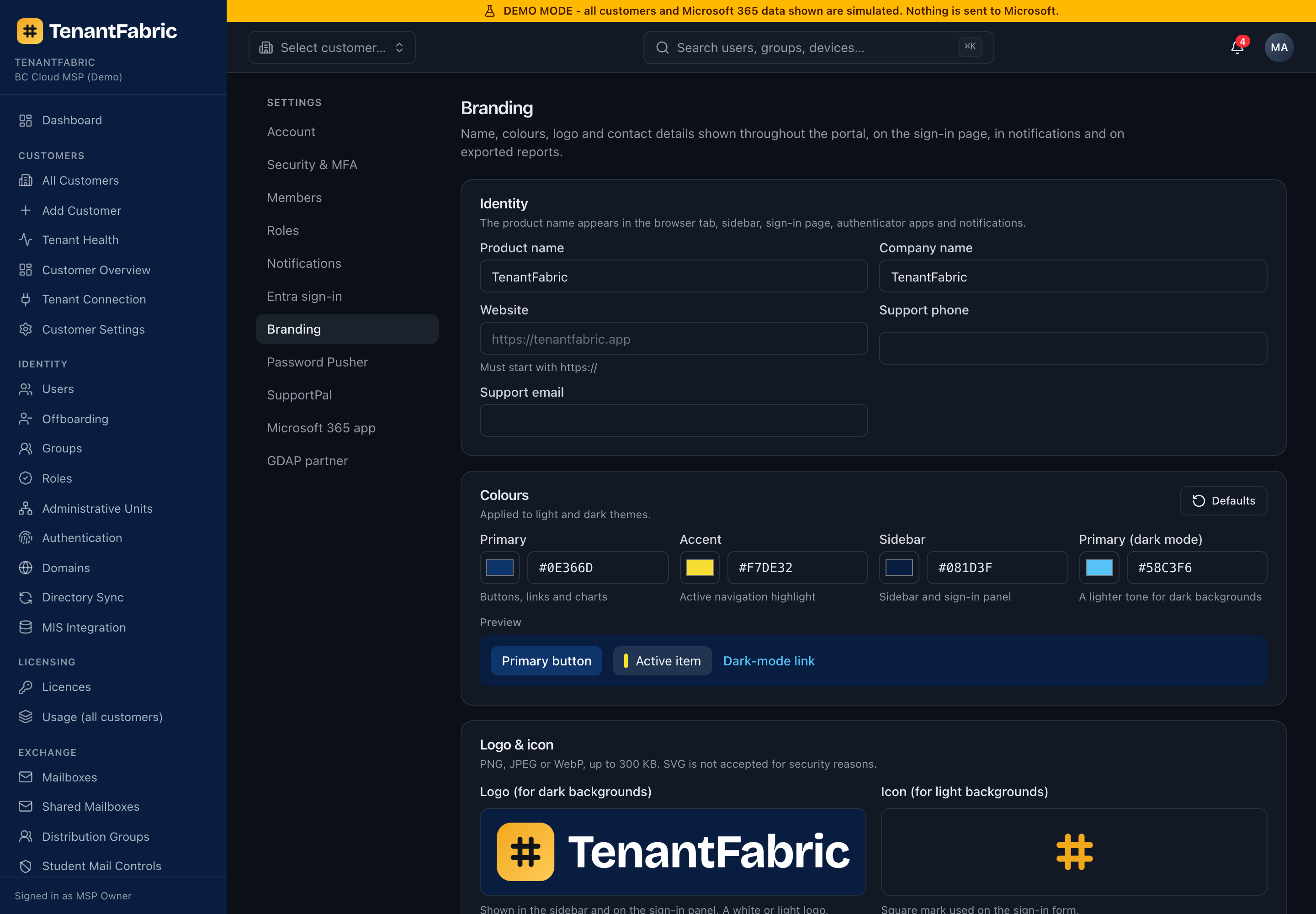
Settings - branding
White-label TenantFabric with your identity: company and product name, accent colours, and logo & icon. These flow through the portal shell (the sidebar, sign-in page and reports) - which is why the interface in this manual carries the TenantFabric mark. Save branding applies it; Defaults reverts.
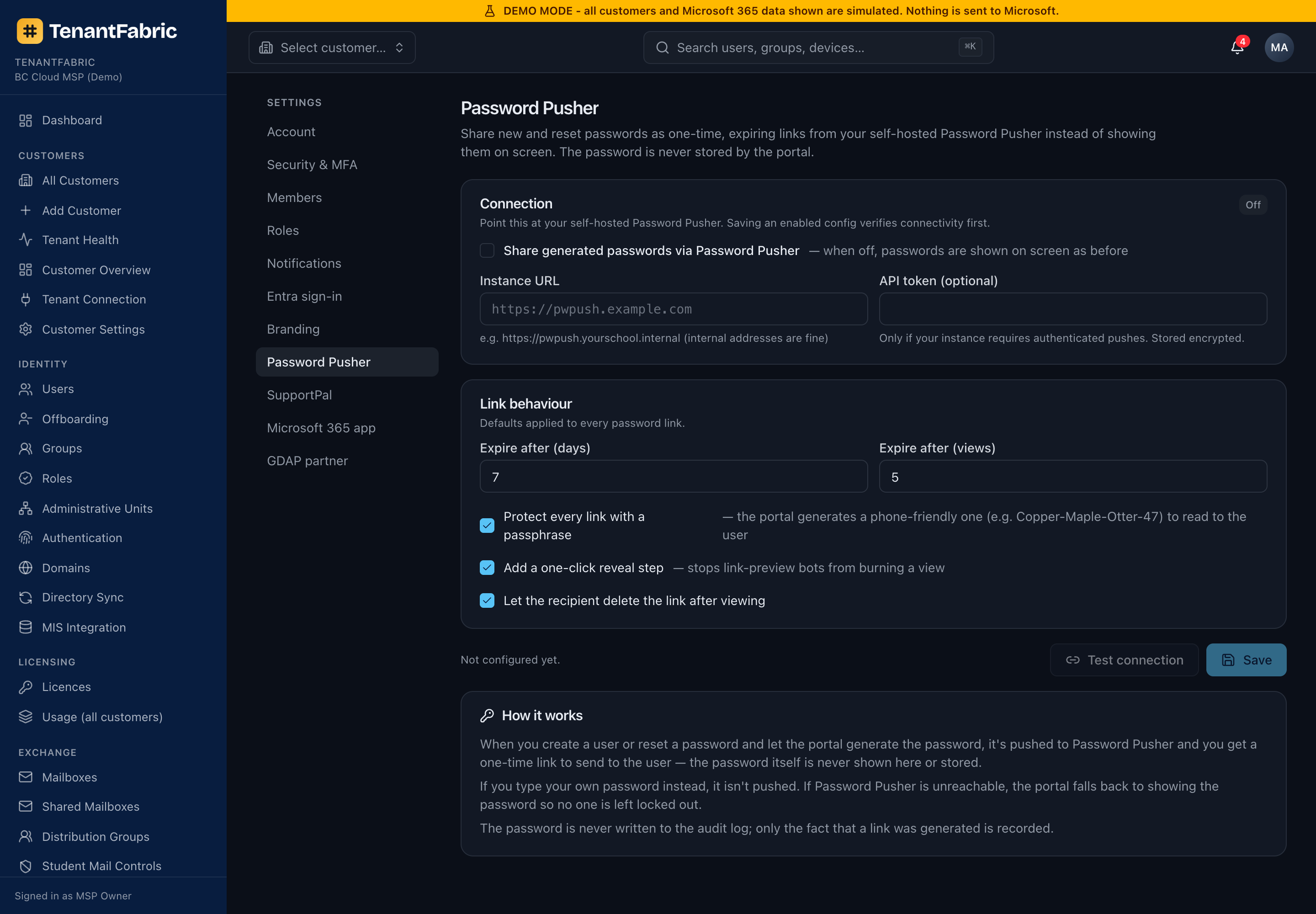
Settings - Password Pusher
Integrates a Password Pusher service so that passwords you reset can be handed to users as a secure, self-expiring link instead of being typed into chat or email. Configure the connection and link behaviour (expiry, views), Test connection, and Save. The "How it works" panel explains the flow.
Appendix A - Roles & permissions
TenantFabric roles decide what a member can see and do. Permissions are granular; the built-in roles bundle sensible defaults, and you can create custom roles under Settings ▸ Roles.
| Role | Typical use | Scope |
|---|---|---|
| MSP Owner | Full control, including org settings, billing and roles. | All customers |
| MSP Administrator | Manage customers, members and automation; not owner-only settings. | All customers |
| Senior Engineer | All customer-facing changes incl. sensitive actions. | All / assigned customers |
| Engineer | Day-to-day changes (users, groups, devices, mailboxes). | Assigned customers |
| Helpdesk | Password resets, identity verification, basic user tasks. | Assigned customers |
| Read Only | View and export, no changes. | Assigned customers |
| Customer Admin | A customer's own staff managing just their tenant. | Own tenant |
| Customer Read Only | A customer viewing their own tenant. | Own tenant |
Permissions follow a area.action pattern - for example users.read, users.write, intune.read, intune.write, intune.wipe, reports.export, tenants.write, automations.write. A page simply won't appear if your role lacks its read permission, and an action button is hidden or disabled without its write permission.
Appendix B - Microsoft permissions & data freshness
TenantFabric calls Microsoft Graph with least-privilege scopes derived from each customer's enabled modules. Choosing Read on a module grants its read scopes; Manage adds the write scopes. If a tenant hasn't consented to a scope a feature needs, that feature's page tells you which permission is missing and links you to Tenant Connection to re-consent - it never invents data to fill the gap.
Data freshness. Dashboards and reporting read from a cached snapshot that a background sync refreshes on a schedule (shown as "Last synchronised …" on each page). Sync now queues an immediate refresh. Live actions (resets, policy changes, device commands) always go straight to Microsoft in real time and are confirmed and audited.
Appendix C - Glossary
| Term | Meaning |
|---|---|
| Tenant | A customer's Microsoft 365 / Entra directory. |
| GDAP | Granular Delegated Admin Privileges - Microsoft's partner delegated-access model. |
| Graph | Microsoft Graph, the API TenantFabric uses to read and change tenant data. |
| Secure Score | Microsoft's measure of a tenant's security posture. |
| Conditional Access | Entra ID P1 policies controlling who can sign in, from where and how. |
| TAP | Temporary Access Pass - a time-limited passcode for identity verification / passwordless onboarding. |
| Autopilot | Windows device provisioning that configures a new PC automatically at first sign-in. |
| Group Tag | An Autopilot label that drives which deployment profile and groups a device receives. |
| Drift | When a tenant's settings diverge from your configuration template. |
| Purview | Microsoft's data-governance suite (sensitivity/retention labels, eDiscovery). |